Personnel data must be in a specific format called CSV, and the file structure must match a defined specification. On every installation disc and on our website you will find a sample file (template) and, for administrators, a definition file.
How to proceed:
In the Data menu, click Personnel Data Import.
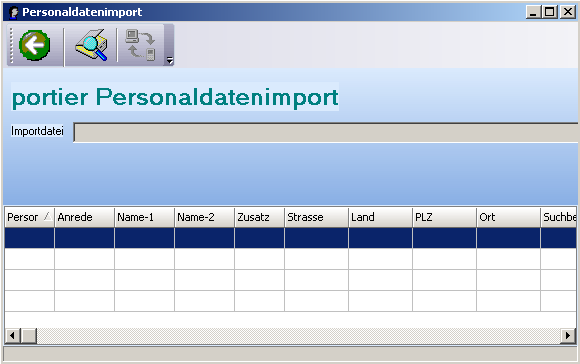
The Personnel Data Import window opens. Click and browse to the CSV file you want to import.

Start the import by clicking Start Update.
Close the import window by clicking Exit Program. The importable fields are listed below.
Personnel Number — max 15, alphanumeric
Salutation — max 10, alphanumeric — selection field
Name_1 — max 40, alphanumeric — last name or company name
Name_2 — max 40, alphanumeric — first name or employee name (external company)
Additional — max 40, alphanumeric — free text field
Street — max 40, alphanumeric
Country — max 2, alphanumeric
Post Code — max 5, numeric
City — max 40, alphanumeric
Search Term — max 40, alphanumeric — auto-filled from Name_1; can be overwritten
Phone (work) — max 30, alphanumeric
Phone (home) — max 30, alphanumeric
Fax — max 30, alphanumeric
Mobile — max 30, alphanumeric
Email — max 50, alphanumeric — format: [email protected]
Web — max 80, alphanumeric — format: www.name.com
Department — max 50, alphanumeric — selection field
Division — max 50, alphanumeric — selection field
Cost Centre — max 50, alphanumeric — selection field
Role / Function — max 50, alphanumeric — selection field
Office Room — max 50, alphanumeric — selection field
Employment Status — max 50, alphanumeric — selection field
Start Date — max 10, date — format: DD.MM.YYYY
Time — max 5, alphanumeric — format: HH:MM
End Date — max 10, date — format: DD.MM.YYYY
Competence Level — max 2, numeric — range 0–15
Note: The Date of Birth and Remarks fields cannot be imported.