If you want to not only search for records but also modify them as part of a query, click in the menuEXTRA on the entrySearch and Replace
Here you have several options:
Facilities: | Search facilities and modify facility data
Buildings: | Search buildings and modify building data
Personnel: | Search personnel and modify personnel data
Keys: | Search keys and modify key data
Copies: | Search copies and modify copy data
Cylinders: | Search cylinders and modify cylinder data
Bunches: | Search bunches and modify bunch data
Users: | Search users and modify user data
The general procedure is as follows:
In the tabSearch you define conditions
In the tabResult the found records are displayed
You select the records that should be changed
In the tabResult you define which data should be changed and how
An example:
The department "Verkauf" changes its name and is now called "Sales". The personnel data (who belongs to which department) should be updated accordingly.
The task is now to find the people whose data needs to be changed.
To do this, click in the menuEXTRA onSearch and Replace and select the entryPersonnel.
The windowSearch and Replace: Personnel opens.
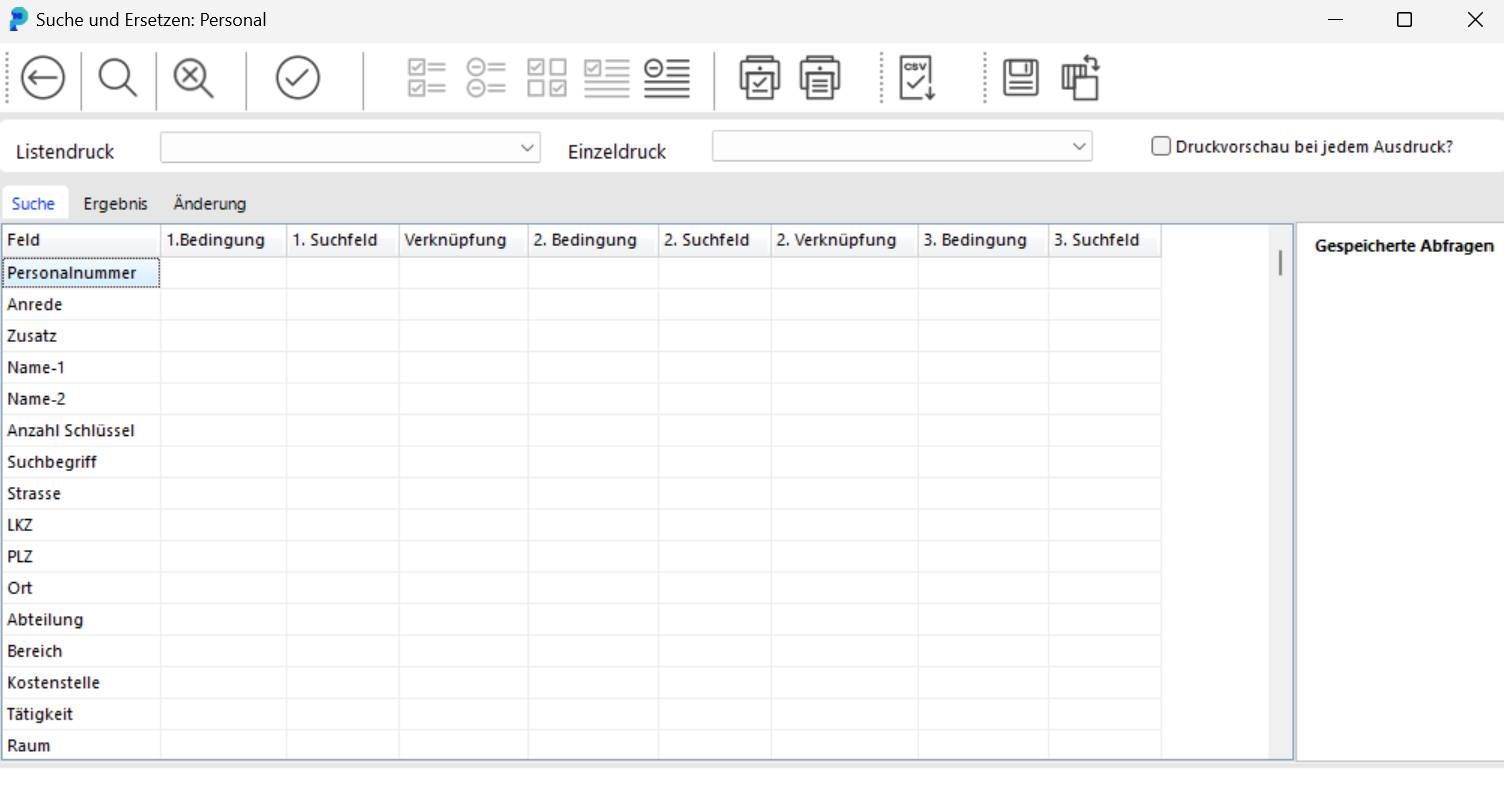
In the rowDepartment select in the column1st Condition the entryequal to. In the rowDepartment enter in column 1.Search Field "Verkauf". Start the search by clicking the buttonStart SelectionIn the tabResult, the people assigned to the department "Verkauf" are displayed.
 By clicking the buttonCheck All, you select all found people.
 If you only want to select individual people, click on these people in the columnChange.
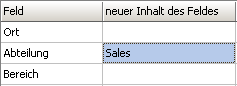 In the tabChange enter in the rowDepartment the new field content (in this case: "Sales").
Please note:You should only perform changes when you are absolutely sure.
 The data is changed by clicking the buttonApply Changes
Following the same procedure, you can modify facilities and buildings, keys and copies, cylinders and bunches, as well as depots and users.