Please download and install the application from Google Play or Apple Store:

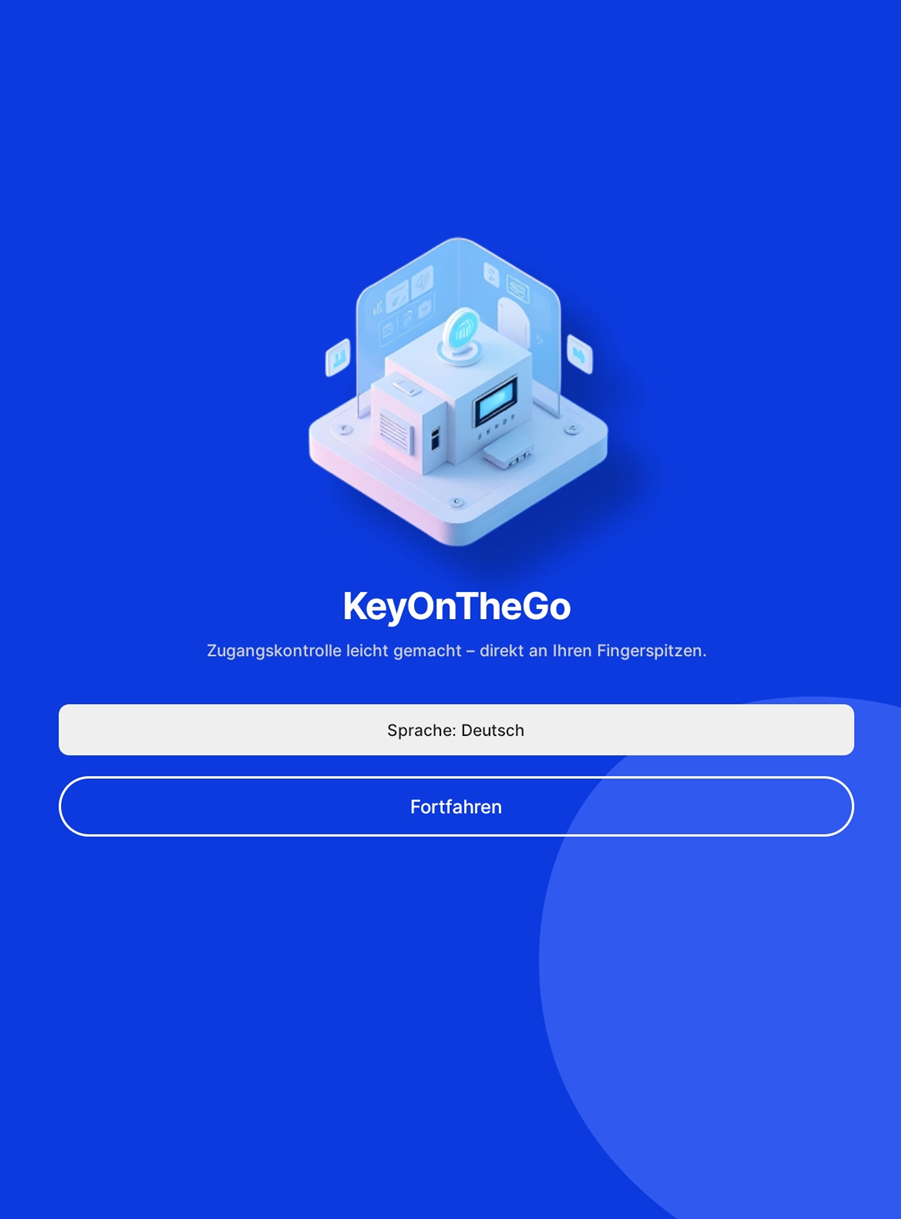
On the start screen, you can set your preferred language.
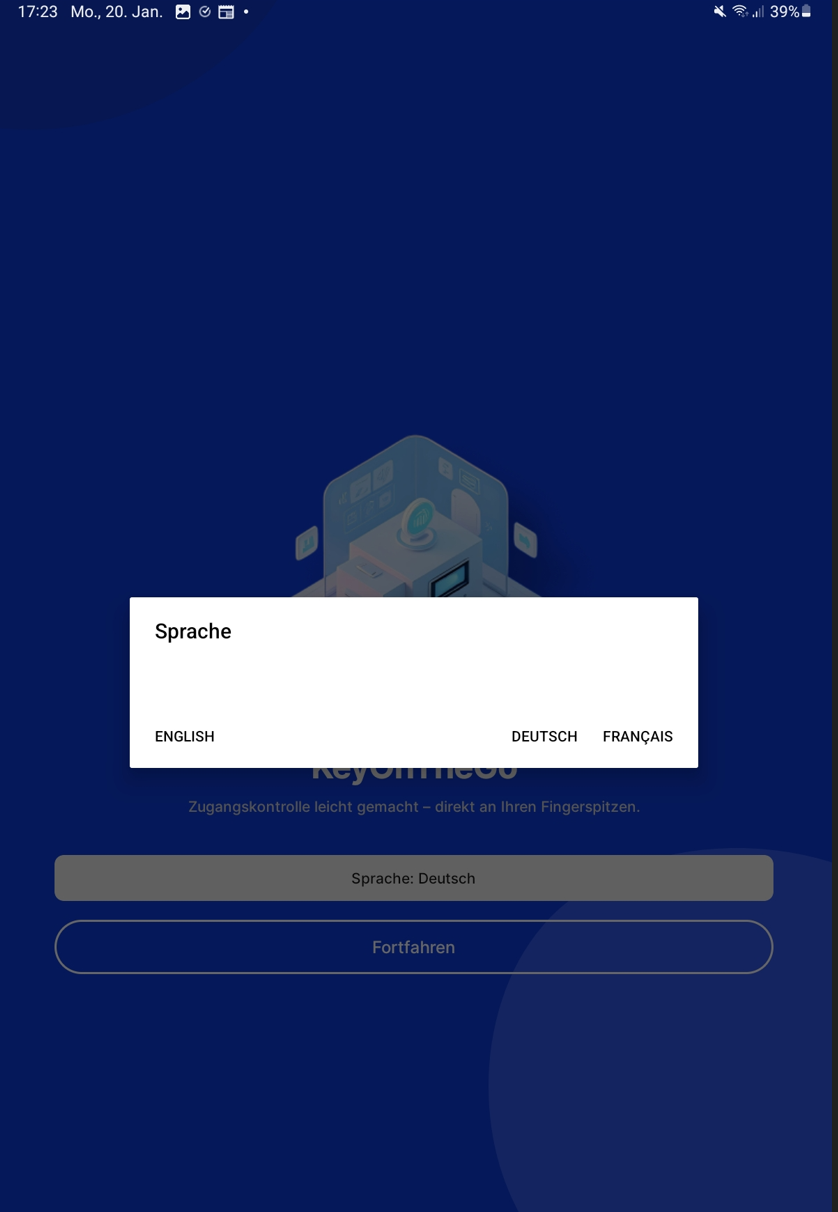
You can choose between German, English, and French
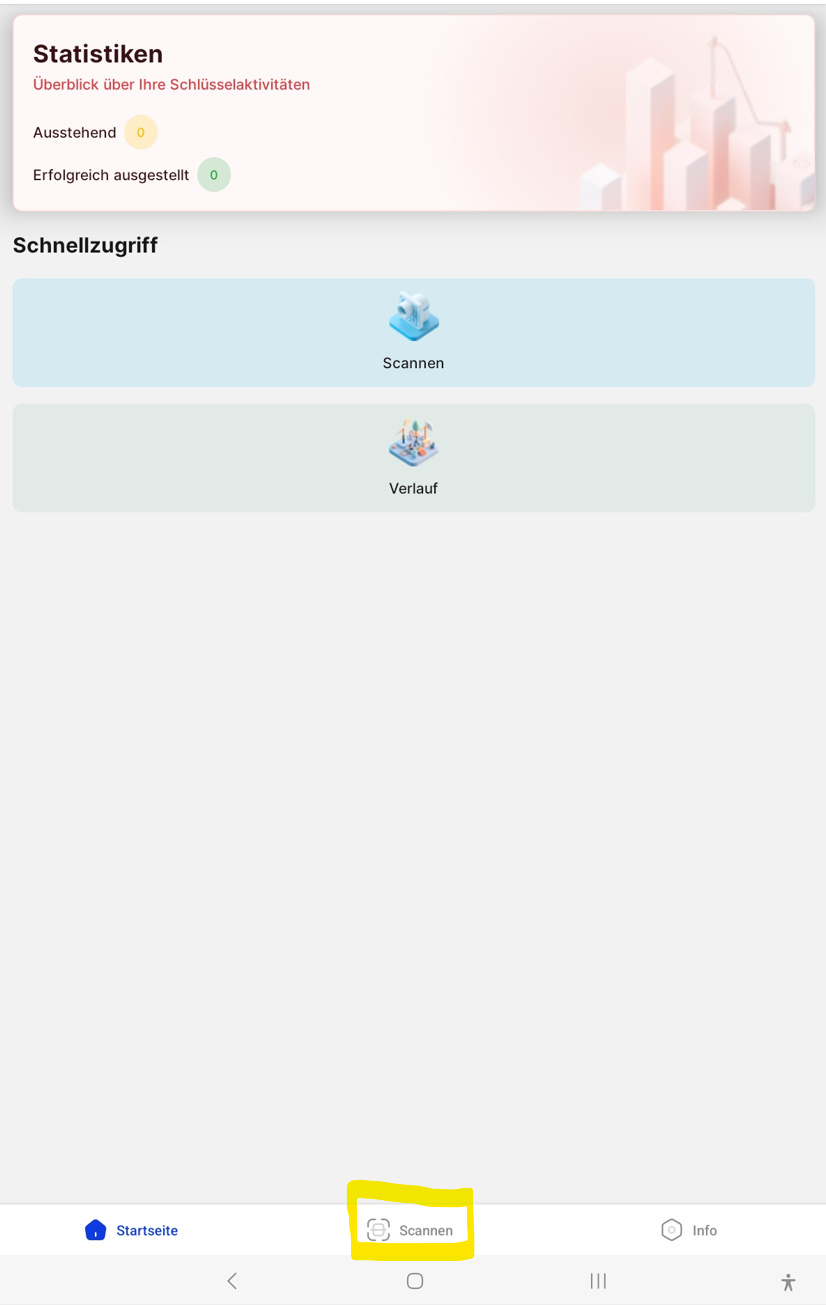
The main menu consists of the upper area, which provides you with statistics on how many keys were successfully issued and how many are pending return.
The quick access below allows the
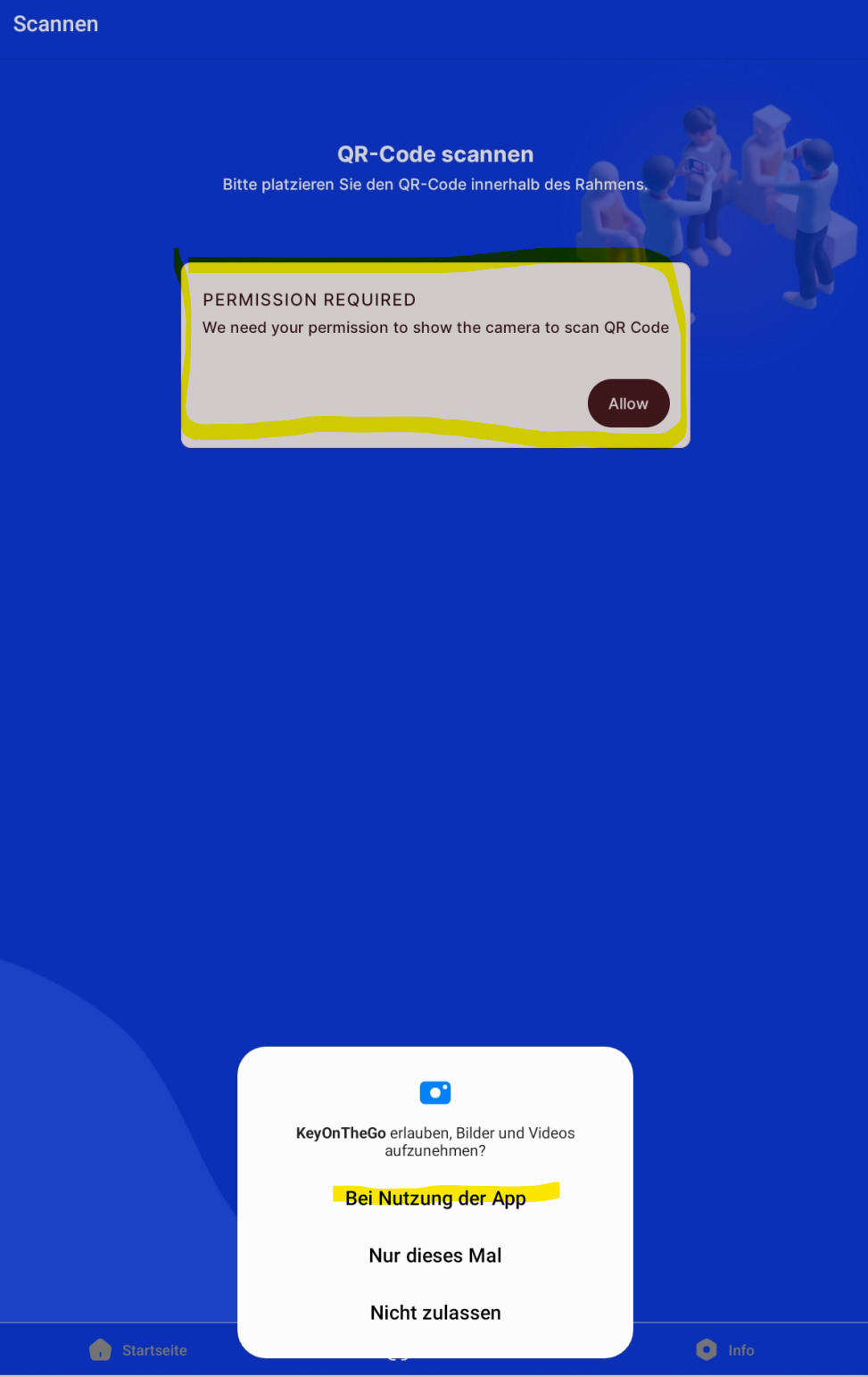
When using for the first time, a permission request appears asking whether the camera of the phone or tablet may scan the QR code in the portier app.
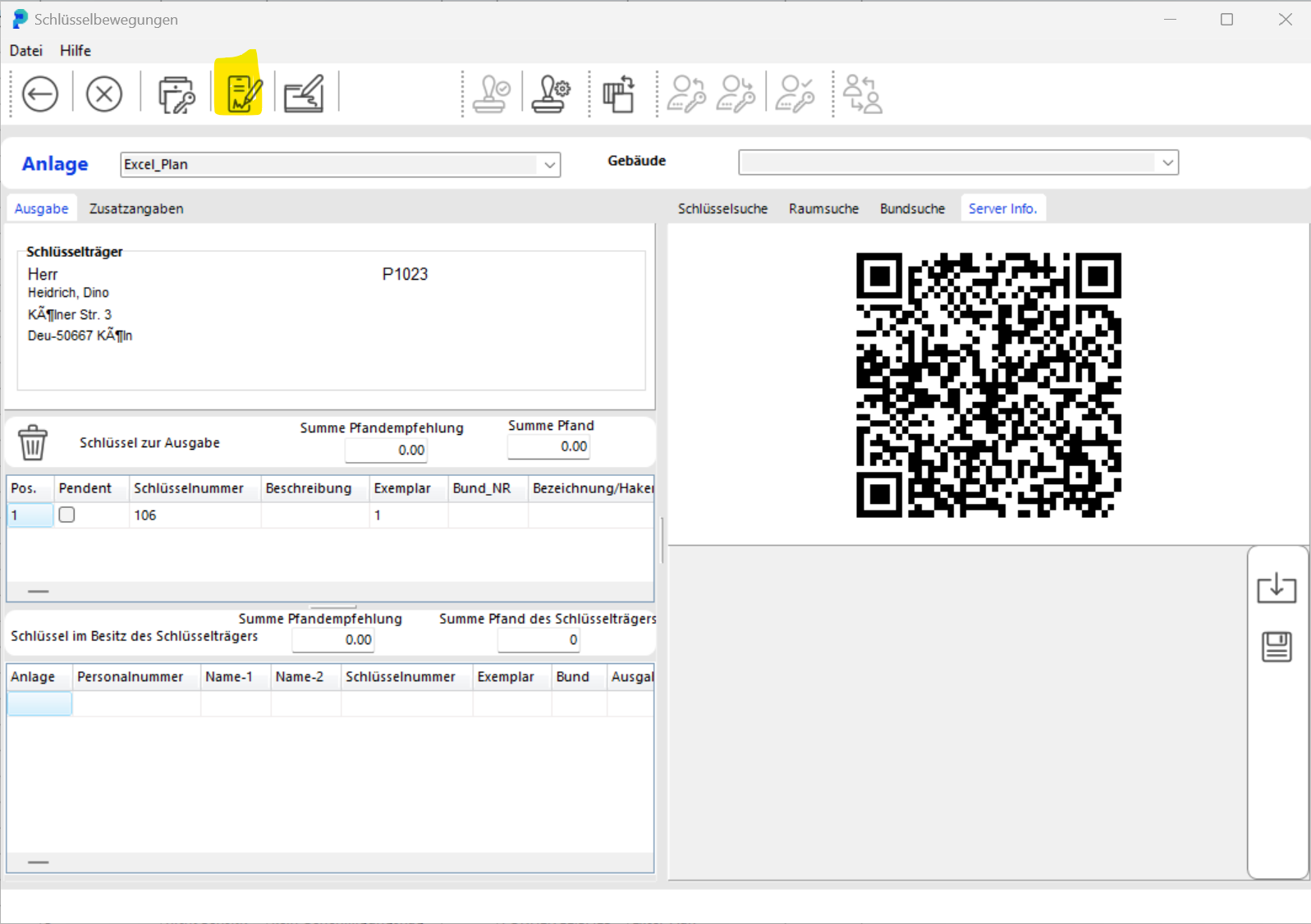
After selecting the key and the person who should receive the key, you can complete the issuance with a click.
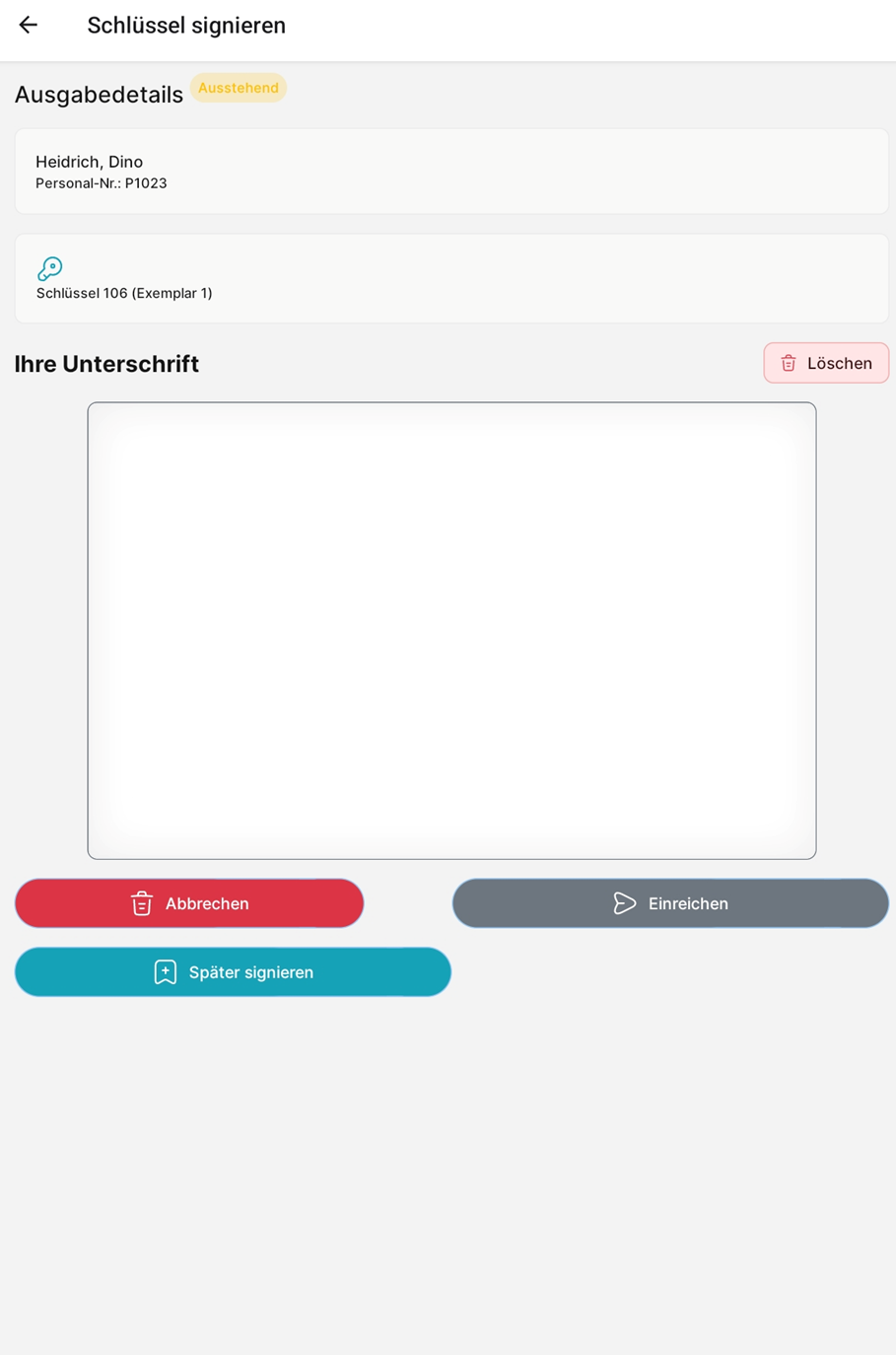
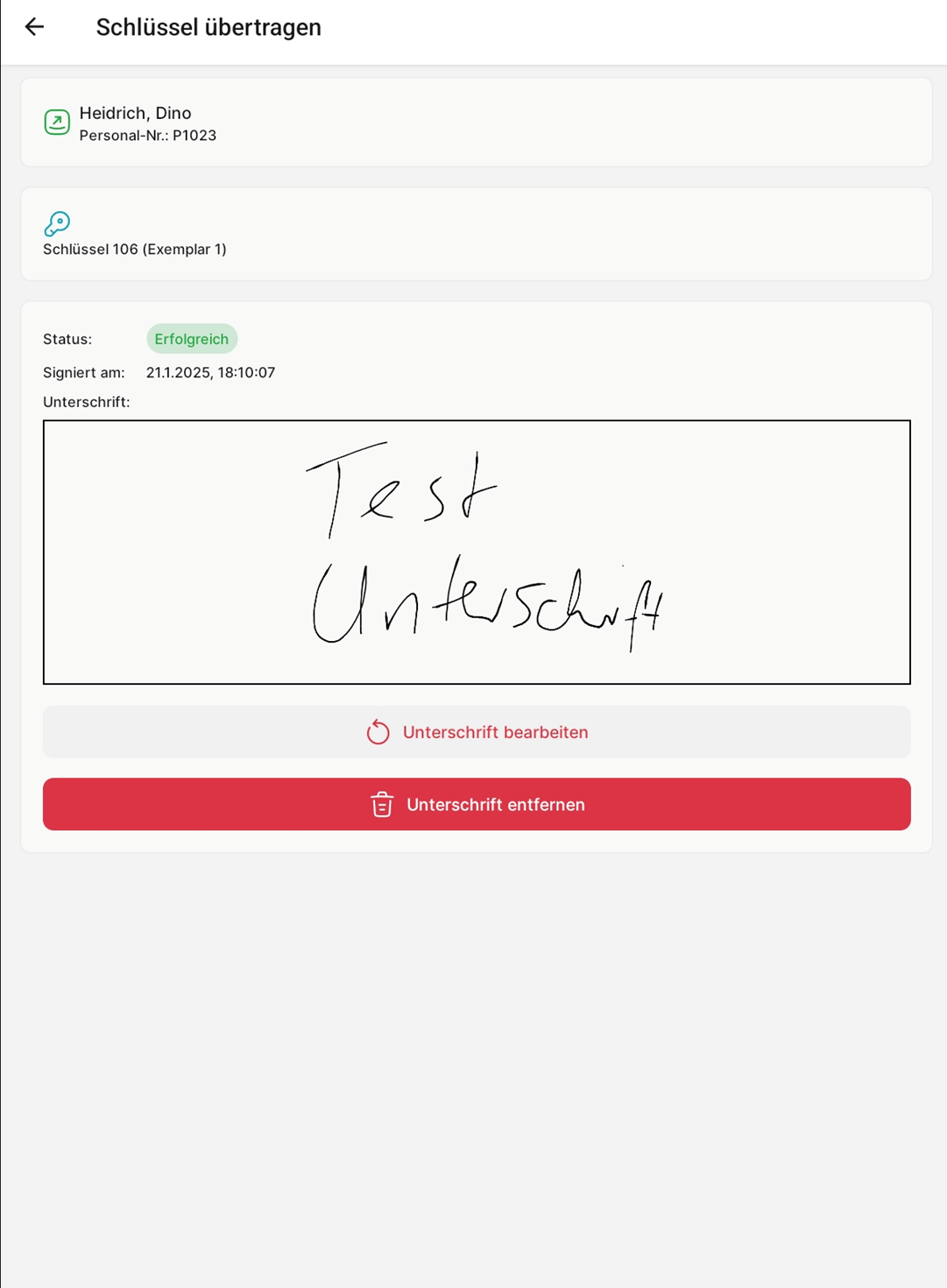
On your mobile device, a signature field is displayed showing the issuance details (person, key number, and date). The recipient can sign directly on the screen.
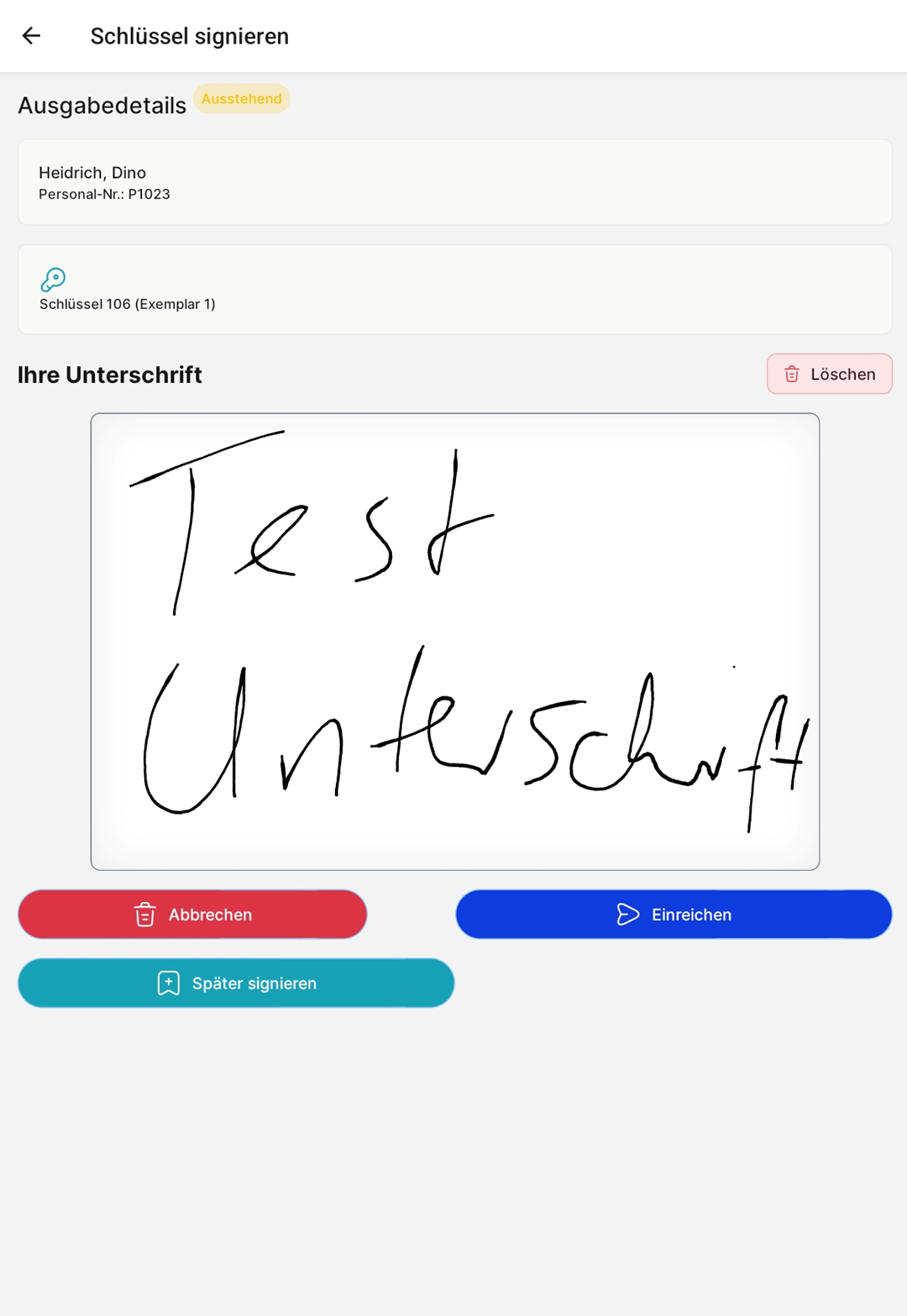
After pressing Submit, you have the option to edit or remove the signature.
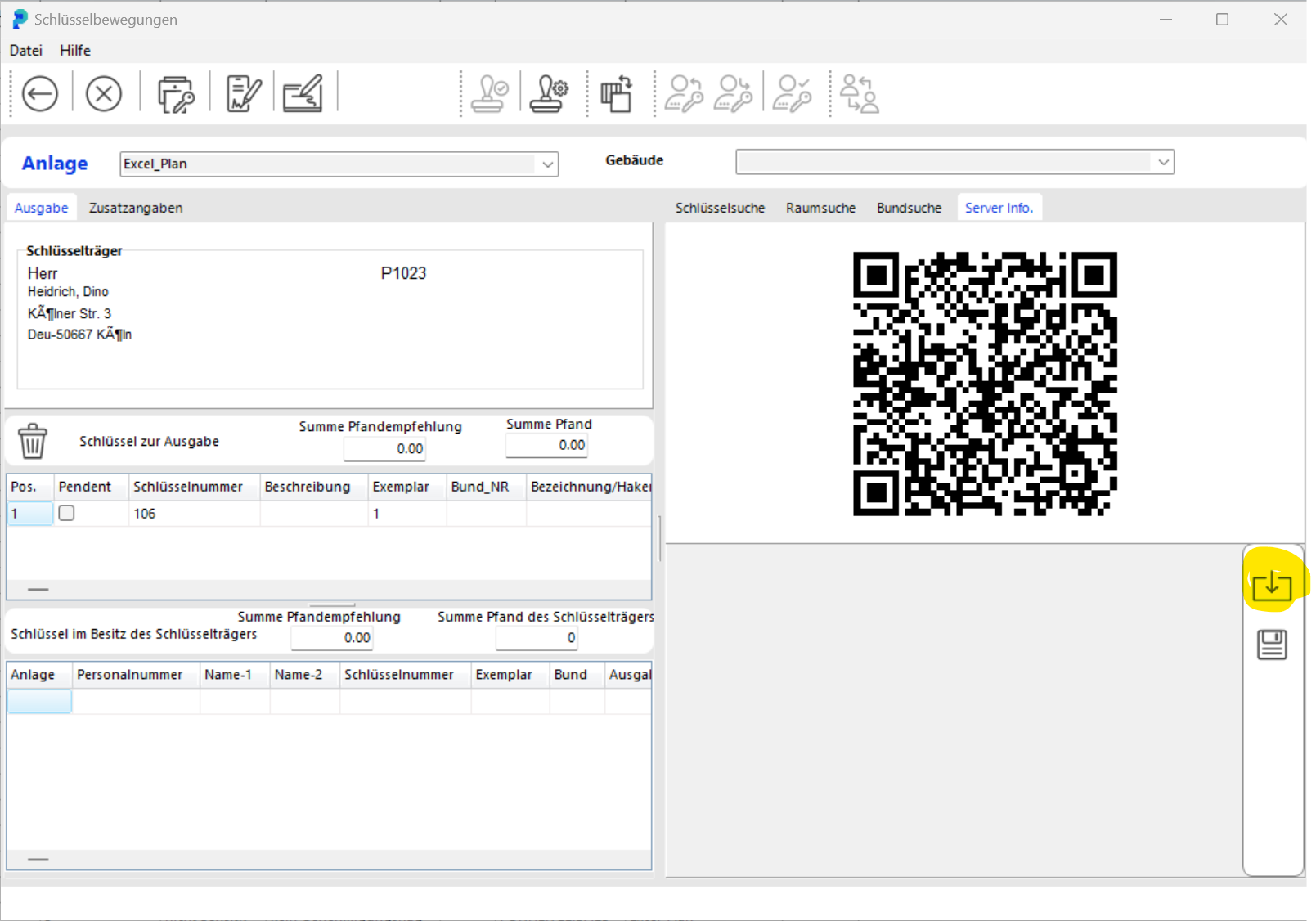
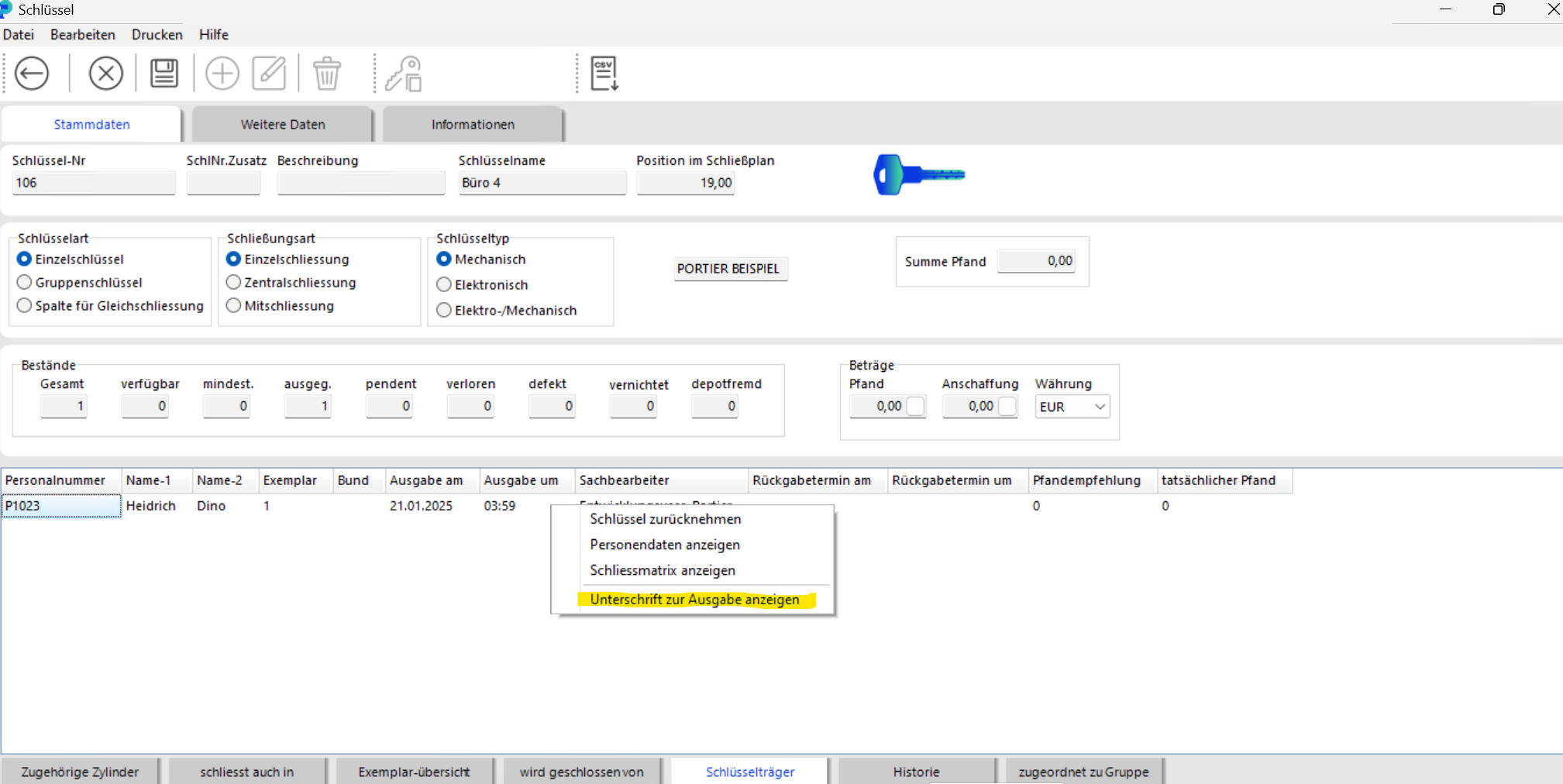
In the portier application, you can then display the signature data using the receipt icon.
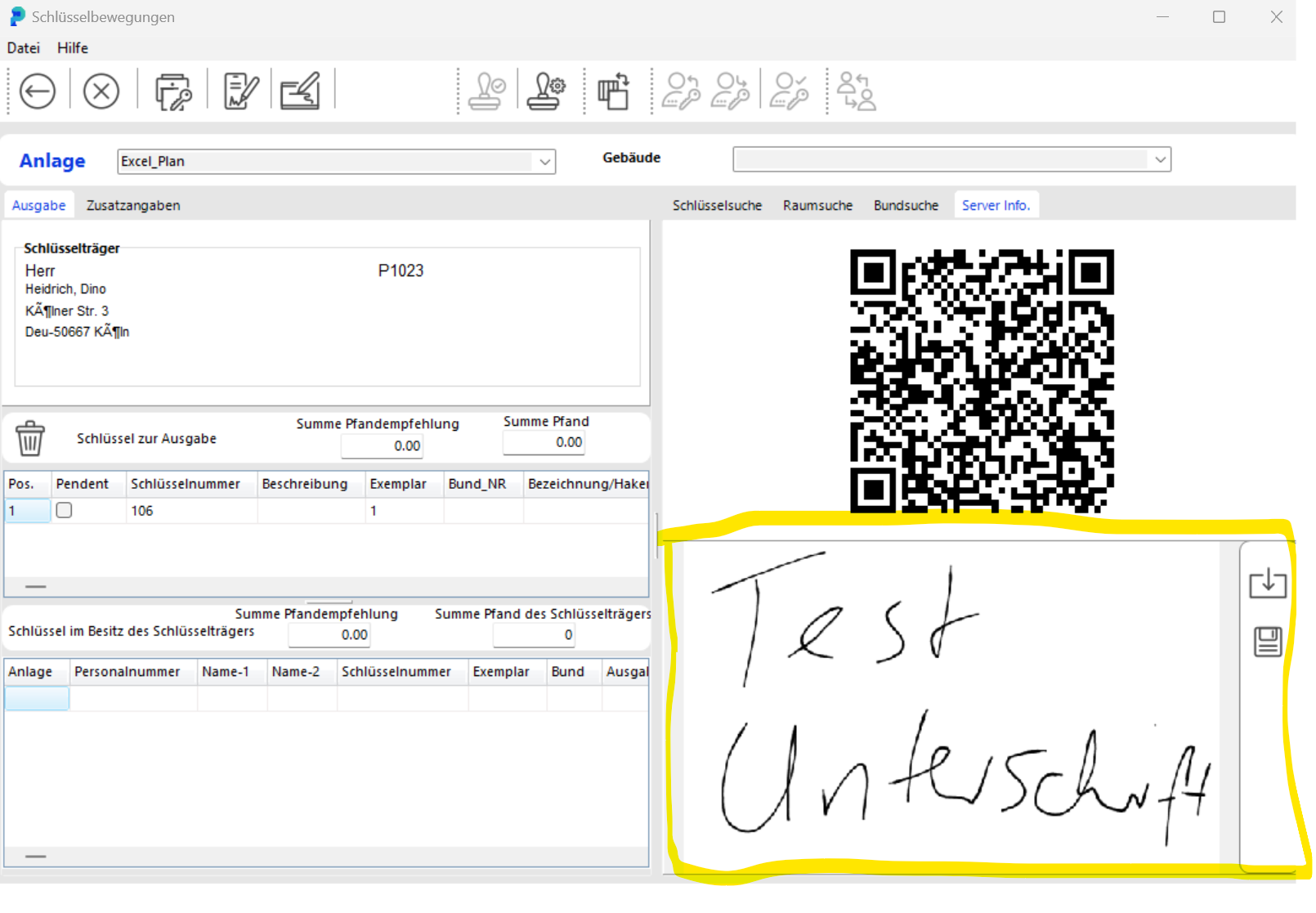
The signature is displayed.
You can save the signature by clicking the floppy disk icon.
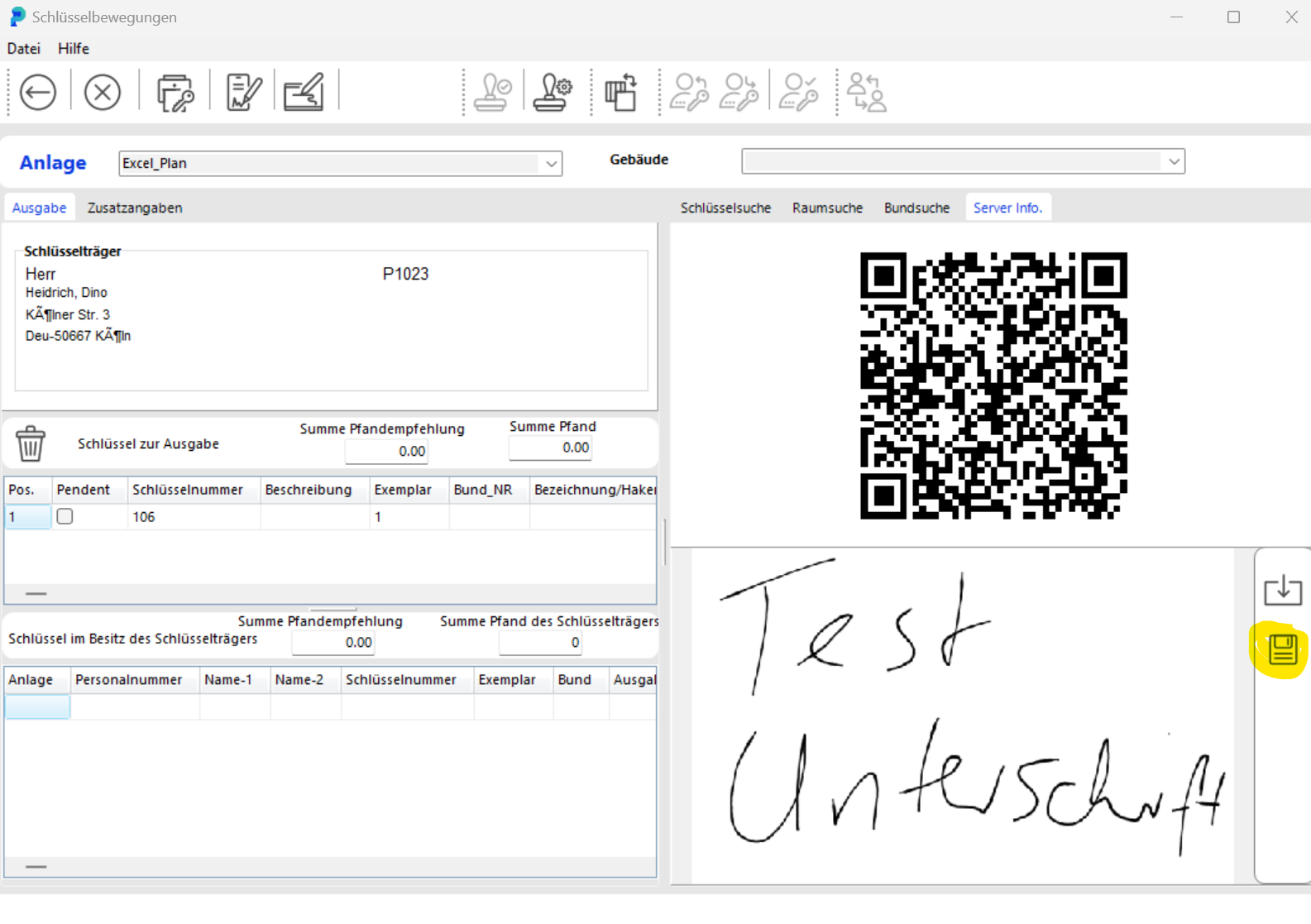
The saved signature is stored in the database after saving and is available in the key view under the Key Holder tab.
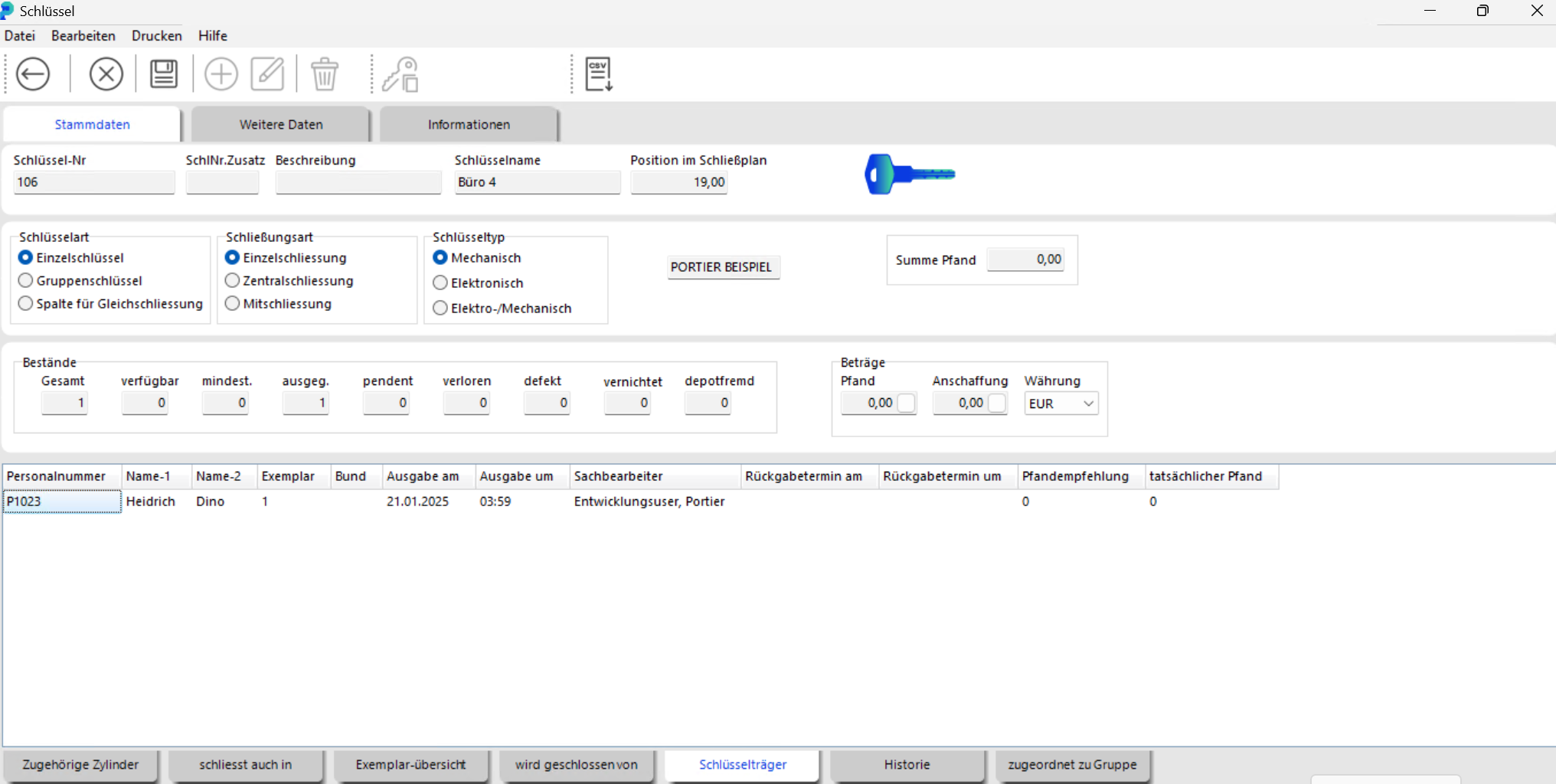
With a right-click on the issuance, you can display the "Signature for issuance".
To useKeyOnTheGo, some simple settings are required. Please go to the User Settings and select the "Manage Modules" tab. Here you can activate KeyOnTheGo and configure the connection settings.