portier Vision Full-Version - Please download this for a fresh installation
portier Update-Version- Please download this version to update your existing portier Vision 5 installation.
Prerequisites
Ensure you have administrator rights on your system
Ensure you have the “DB Owner” role on your database
Have your license data ready (sent via email)
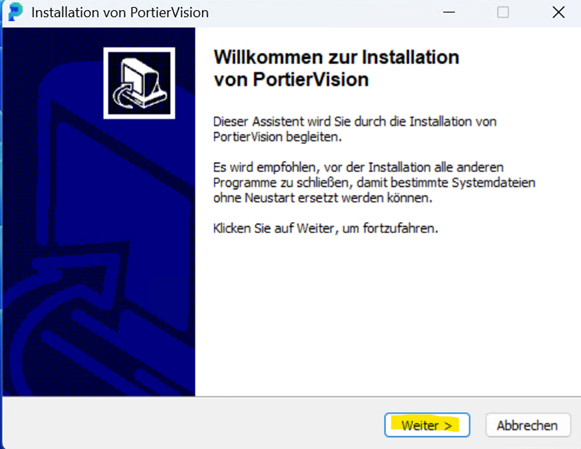
Click “Next”(weiter) to proceed
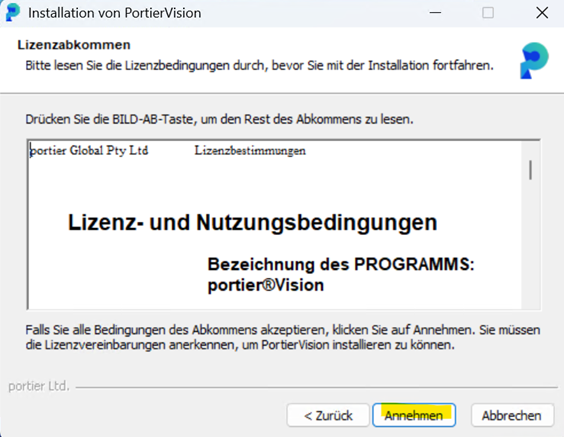
Accept the license and user agreement(Annehmen)
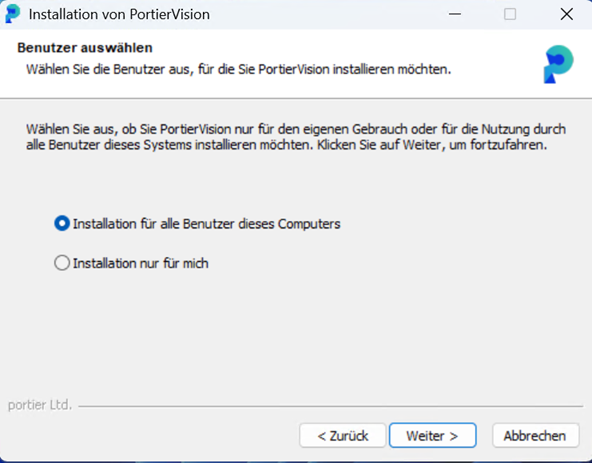
Select “Install for all users”(Alle Benutzer)
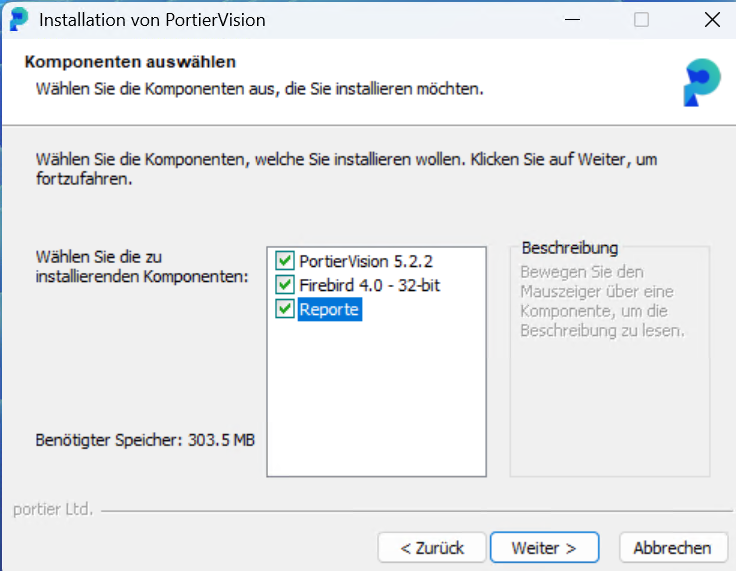
A new window will appear where you can choose what to install.
Select the required components based on your setu
You can install portier Vision 5 in one of the following directories:
C:\Portier\Vision5
D:\Portier\Vision5
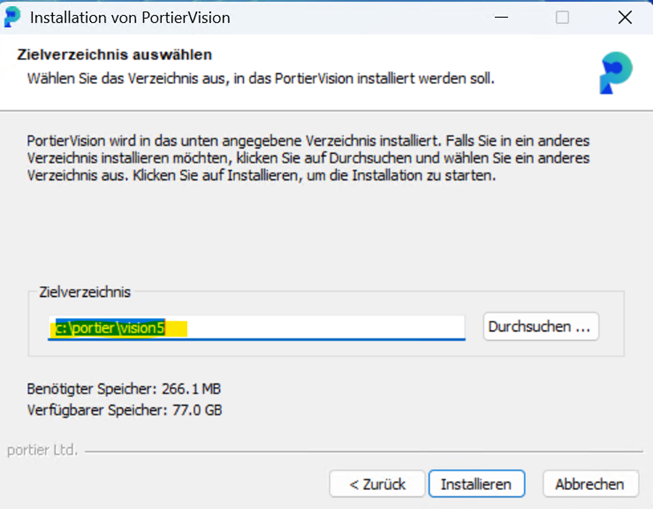
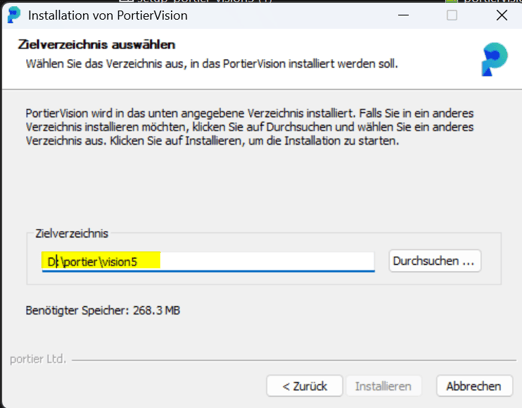
The installation process will begin
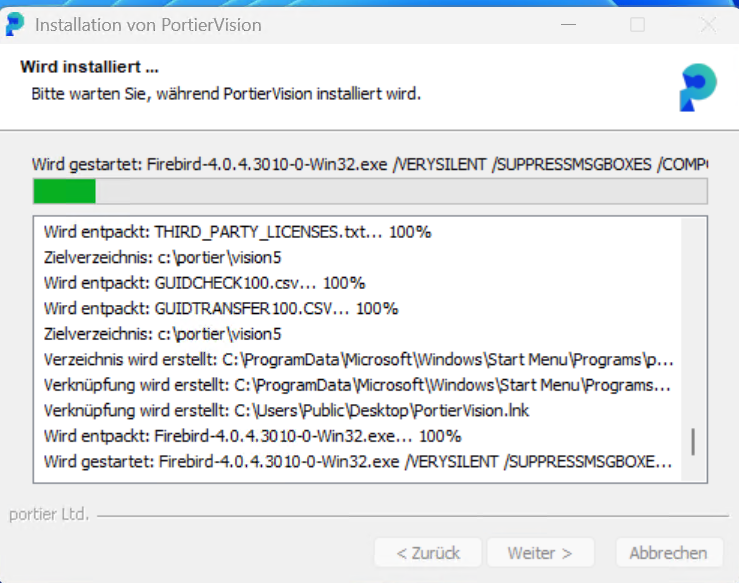
Once finished, the installation is complete
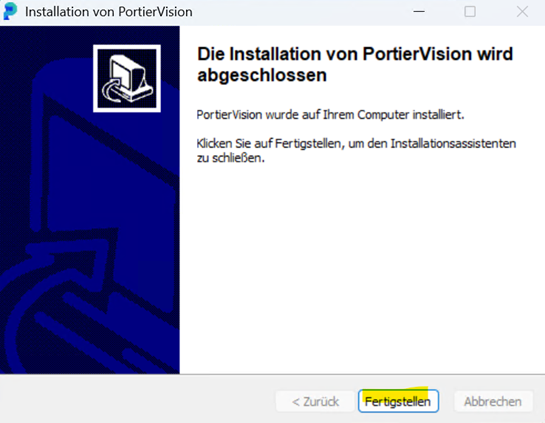
After installation:
Navigate to the Vision 5 folder

Open the portierVisionCompanion

In the portier Vision Companion, you can configure the connection to your database.
Enter your SQL Server credentials
Run a connection test
If successful, click Save
MSQL:
Windows Login:
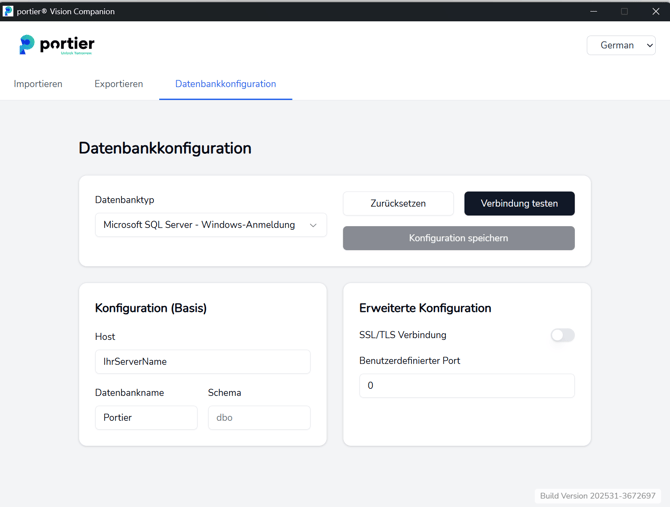
MSQL Normale Authentifizierung: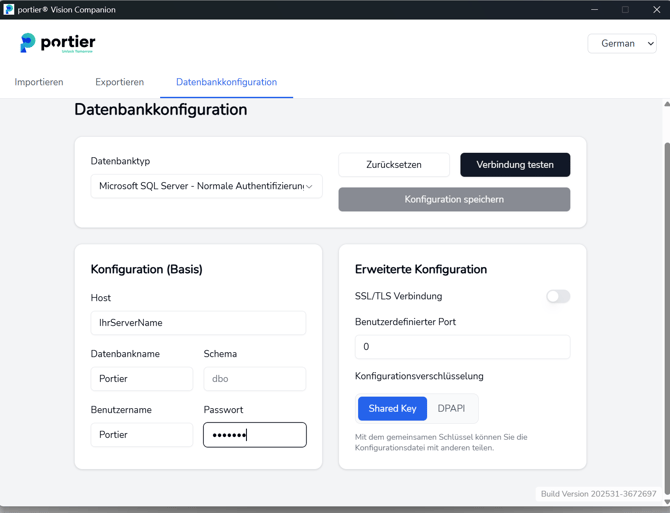
Use your Windows login credentials.
Configuration:
DB Type: MSQLSERVER
Schema: dbo
Host:Local: server nameNetwork: IP address,1433
Local: server name
Network: IP address,1433
DB Name: usually portier
Username: SQL Server username
Password: SQL Server password
TLS/SSL:Enable only if a valid certificate is configured on your SQL Server
Enable only if a valid certificate is configured on your SQL Server
Alternatively, you can enable Windows Authentication instead of using username/password.
DPAPI is a Windows-based encryption service used to securely store sensitive data.
If DPAPI is enabled: Settings are encrypted and stored in the portierVision.ini fileThe file cannot be shared across clients
Settings are encrypted and stored in the portierVision.ini file
The file cannot be shared across clients
If using a Shared Key (AES-GCM encryption): The portierVision.ini file can be securely shared between multiple clients
The portierVision.ini file can be securely shared between multiple clients
Firebird:
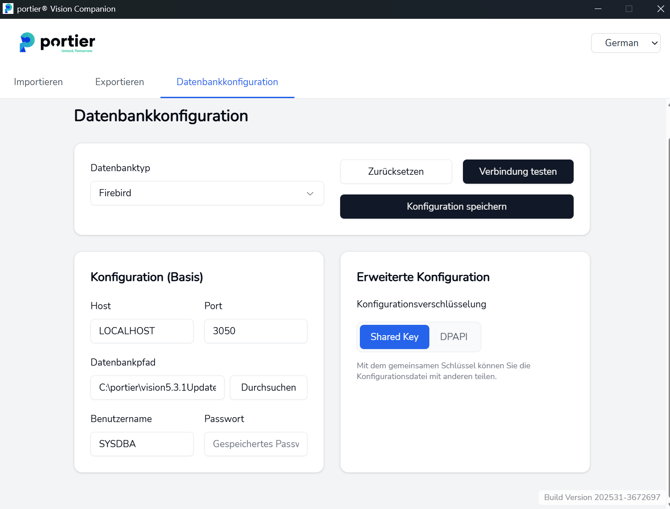
If you are using Firebird, the fields are usually prefilled.
Host:localhost or server IP (if hosted on a network server)

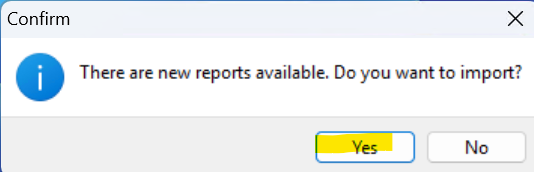
If you selected Reports during installation:
On first startup, you will be asked whether to import reports Click Yes → if no reports are installed yetClick No → if reports already exist In this case, delete old reports from the portier folder if necessary
Click Yes → if no reports are installed yet
Click No → if reports already exist In this case, delete old reports from the portier folder if necessary
In this case, delete old reports from the portier folder if necessary
Enter your license data received via email
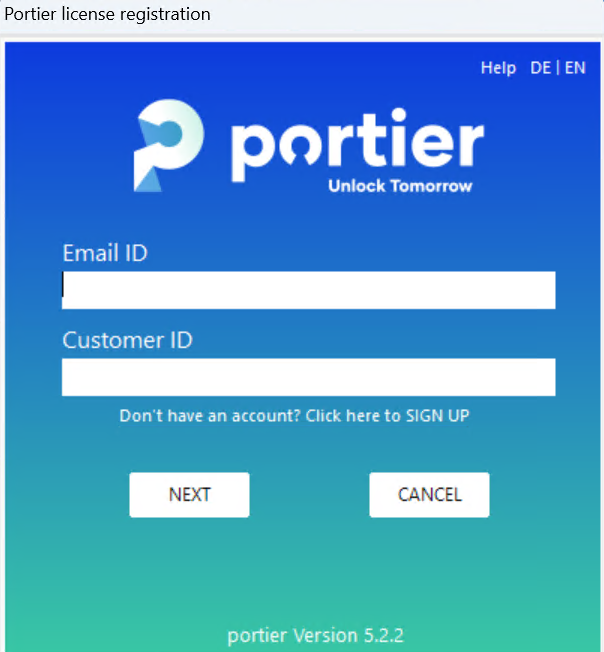
If you:
Use a proxy server, or
Do not have internet access
You can request an offline license from our team.
⚠️ Note: Offline licenses must be renewed annually
To enable license validation, please allow access to the following domains via port 443:
Chargebee:
portier.chargebee.com
app.eu.chargebee.com
SendGrid:
sendgrid.com
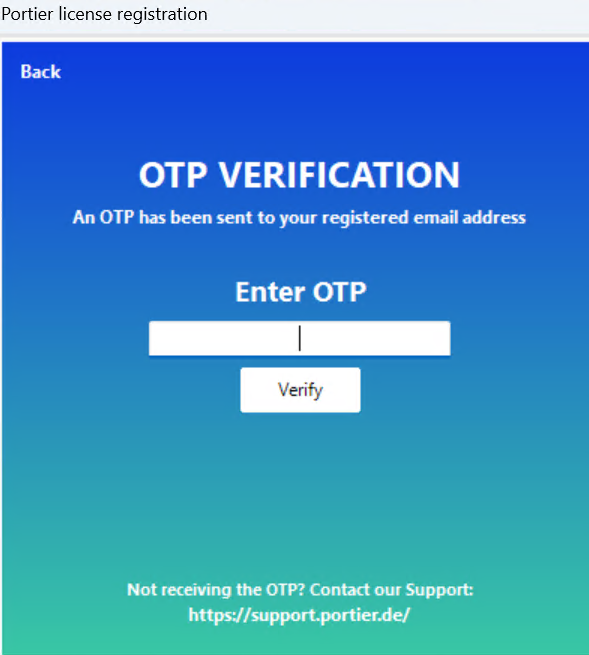
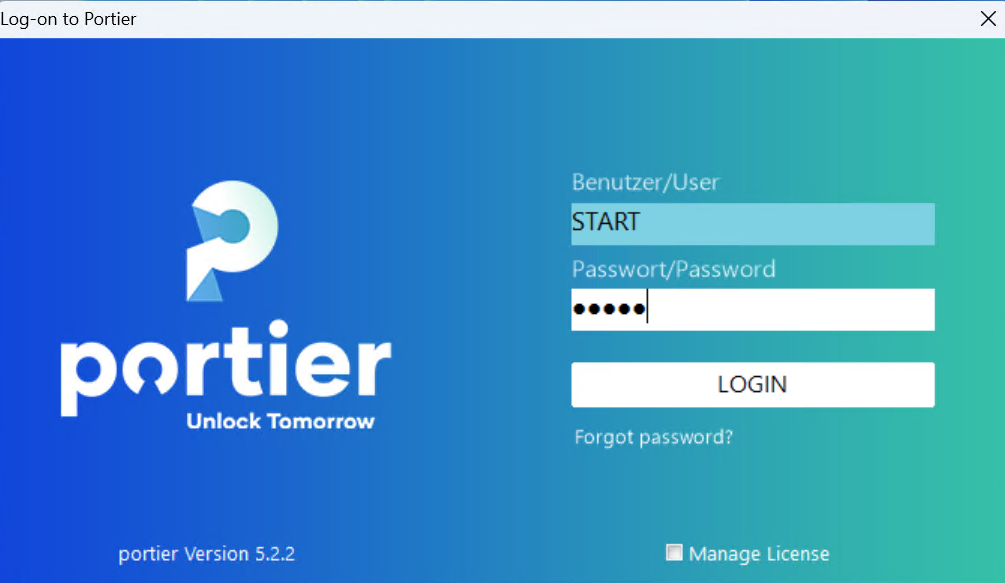
Username: START
Password: START (case-sensitive)
Notes
Customers using Standard or Plus (Firebird) can perform the installation самостоятельно
Customers using Plus (SQL) or Professional typically have the Business Package, which includes: InstallationSQL database setup with a portier expert
Installation
SQL database setup with a portier expert