This module gives you access to:
Issue a key (or F5)
Return a key (or F6)
Report a key loss (or F7)
Report a damaged key (or F8)
Pending key issuance (or F9)
In the top toolbar, select KEY MOVEMENTS and click ISSUE, or press F5. The KEY MOVEMENTS window opens.
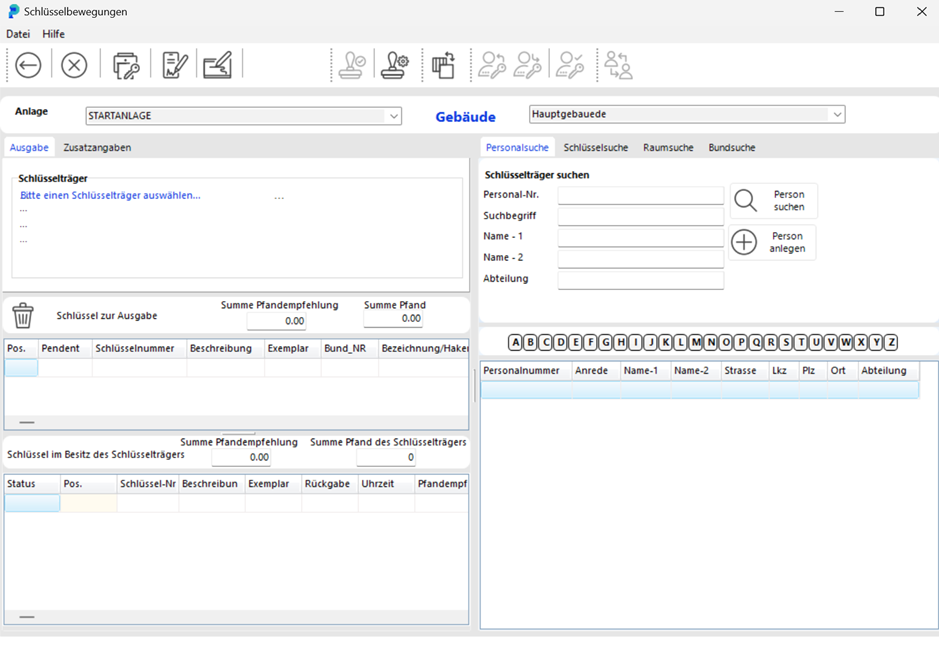
At the top of the window you can see which Installation / Building you are currently in.

On the right side, click the PERSONNEL SEARCH tab to select a key recipient.

Search for the key holder by entering the first characters of their name in Name – 1 and clicking SEARCH FOR PERSON.
A list of matching persons appears.
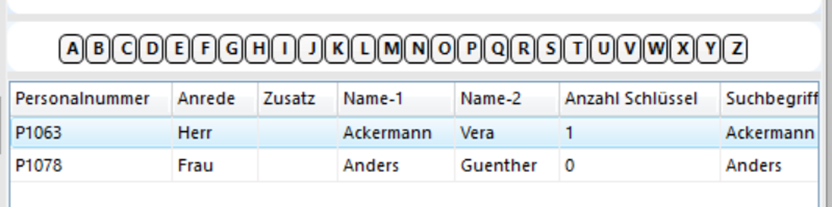
Alternatively, click a letter in the alphabetical index to show all persons whose last name starts with that letter:
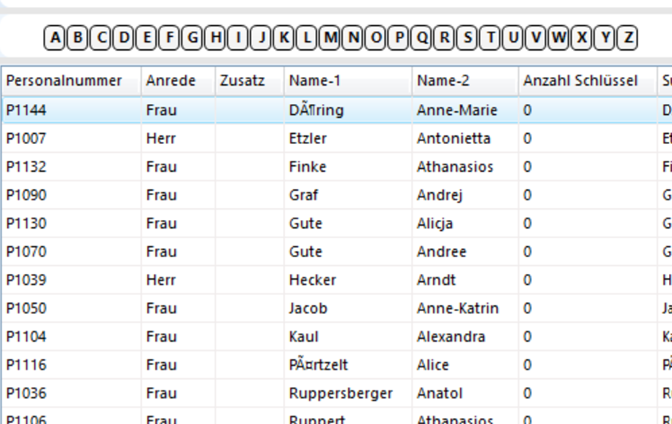
To assign a person as key holder, double-click them. Their data appears in the Key Holder field on the left.
In the KEY SEARCH tab, select the key to issue.

Enter the first characters of the key number in the Key No. field and press ENTER. A list of matching keys appears.
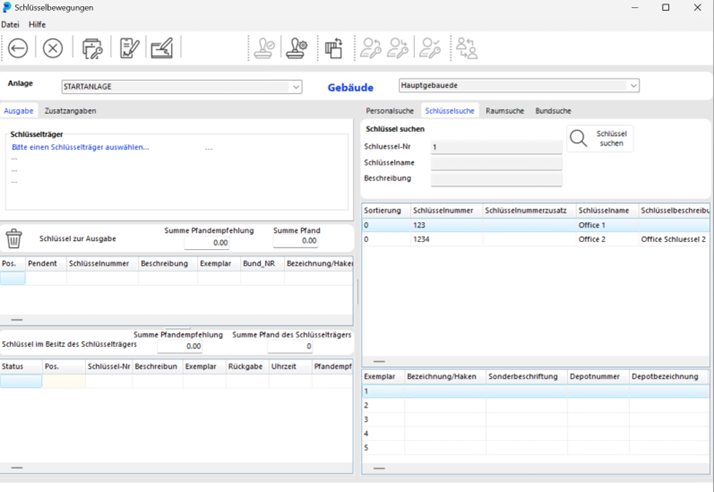
Alternatively, click SEARCH FOR KEY to display all keys.
Select the desired key. All available copies appear below the key list.
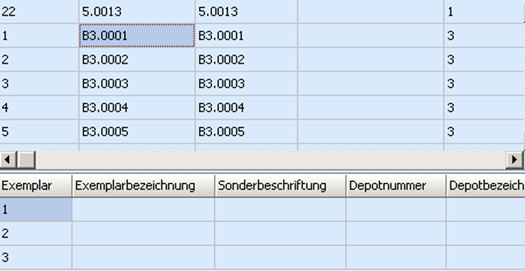
Double-click the copy to issue to transfer it to the KEYS TO ISSUE section.

You can enter a return date and a deposit. The number of keys currently held by the key holder is shown in the Keys Held field.

Post the issuance by clicking BOOK (disk icon).
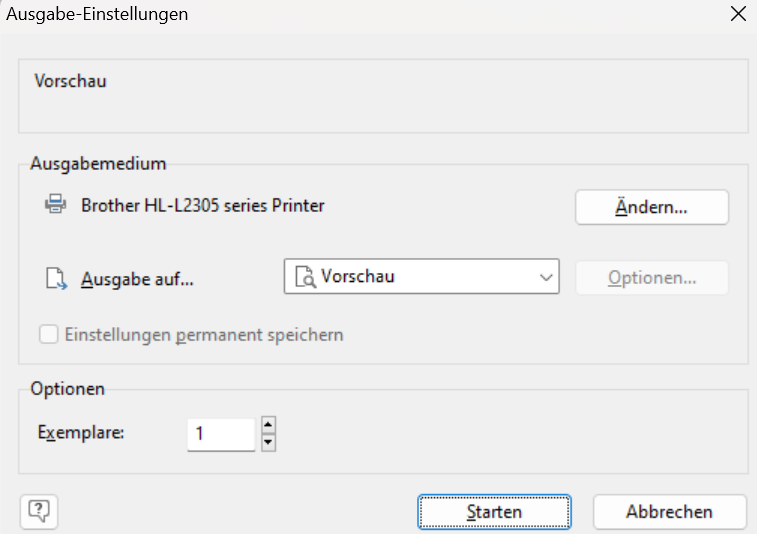
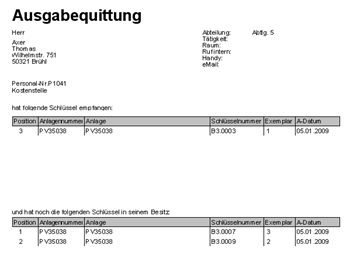
A receipt prints automatically. If you have enabled the relevant settings (see Settings), the ISSUANCE SETTINGS window opens. Click START to preview the receipt.
Click the printer icon to print the receipt.
In the top toolbar, select KEY MOVEMENTS and click RETURN, or press F6. The KEY MOVEMENTS window opens.
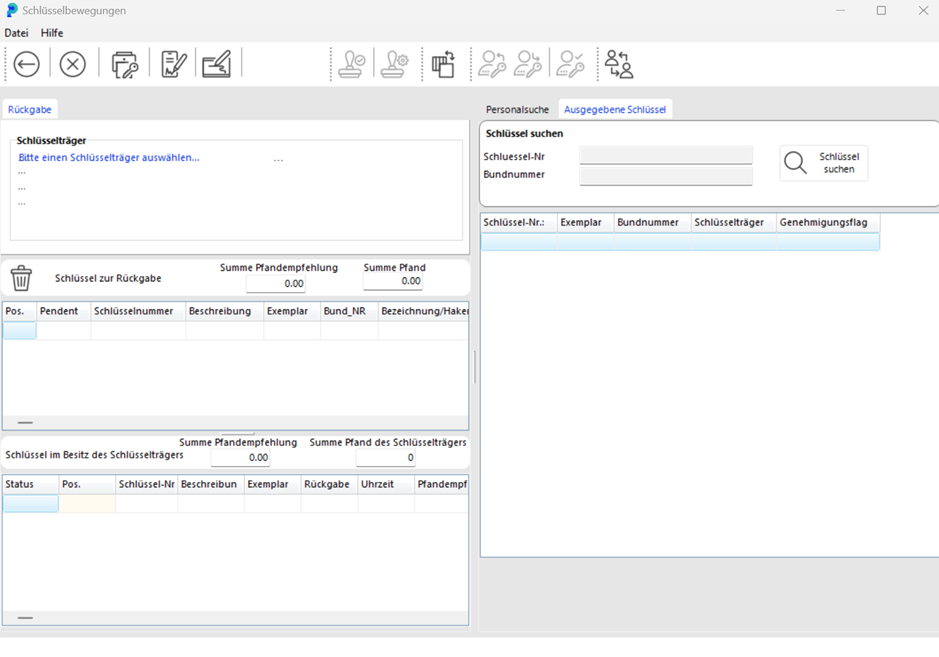
Key return can be done in two ways: by searching for the issued key, or by searching for the key holder.
ISSUED KEYS: Search for the key and see all issued copies with their key holders in the results list. Double-click the copy to return, or right-click and select Return. The key and key holder data transfer to the Return section.
PERSONNEL SEARCH: Search for the key holder and double-click them. Their data transfers to the KEY HOLDER section.
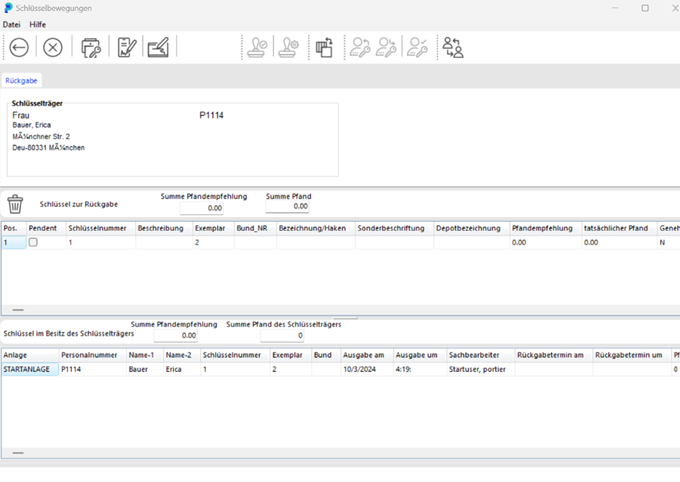
In the Keys Held list, double-click the key to return. The key data transfers to the Key for Return section. Post the return by clicking the disk. The rest of the process is the same as for key issuance.
Note: A key bunch can only be returned in its entirety.
In the top toolbar, select KEY MOVEMENTS and click LOSS REPORT, or press F7. The Key Movements window opens with the Loss form. Follow the same process as for a return. The copy receives the status Loss.
In the Account of Circumstances field, you can explain how the loss occurred. Note: this account is printed on the form but not saved in the database.
In the top toolbar, select KEY MOVEMENTS and click DAMAGE REPORT, or press F8. The KEY MOVEMENTS window opens. Follow the same process as for a return. The copy receives the status DAMAGE REPORT.
In many organisations, employees and contractors are not allowed to take keys out of the building. They receive the keys they need each morning and return them in the evening. These keys are in a suspended state: not in storage, but not permanently issued. portier VISION calls this "pending".
When issuing the key or key bunch, mark the movement as PENDING: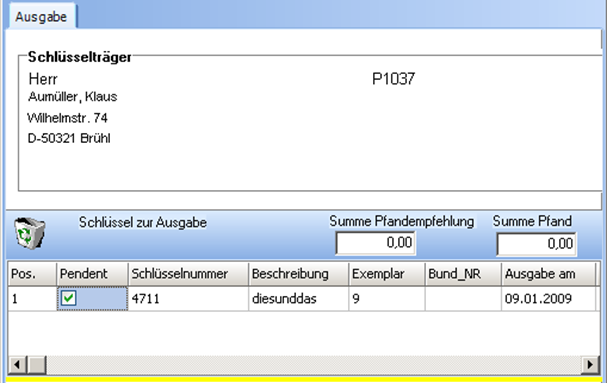
The issuance proceeds normally. portier VISION memorises the transaction for later. When the key is returned in the evening, go to KEY MOVEMENTS and click PENDING, or press F9. The issuance window opens. Click the initial letter of the person you are looking for. portier VISION shows all persons with that letter who have pending keys. Find the key holder, double-click to load their data, then confirm the return by clicking RETURN PENDING. The copy remains reserved with the status PENDING until the next issuance.
To issue the key again the next day, press F9 and follow the same steps. Once you have found the person, click ISSUE PENDING.
To cancel the pending reservation, click CANCEL PENDING during the return.
NOTE: Only one copy can be set as pending at a time. To assign multiple pending keys to one person, use the Key Bunch function.