In the ADMINISTRATION / PERSONNEL module, click SEARCH to display all recorded persons.
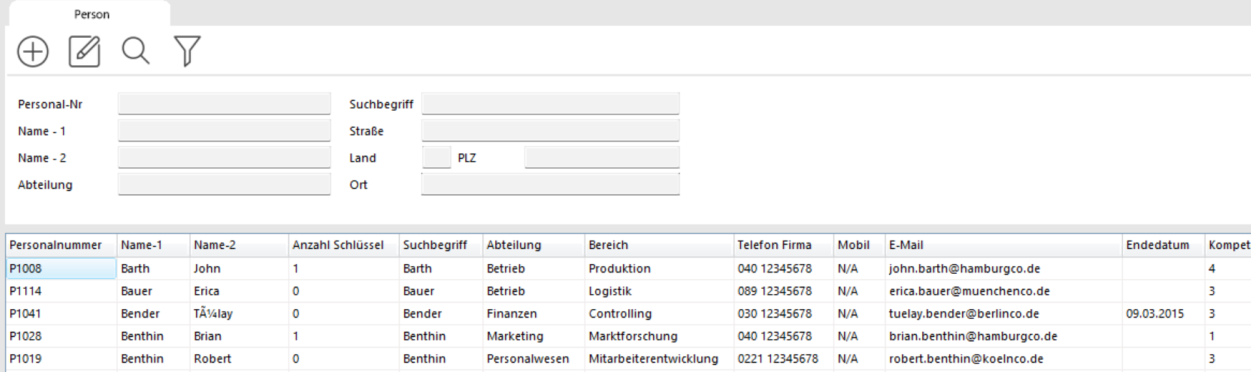
If the list is long, you can narrow it down by entering the first letters of the last name in NAME – 1 and clicking the search icon. Alternatively, press ENTER. All persons whose last name starts with those letters are shown.
Select the person by clicking, then click EDIT. Or double-click them directly. The PERSONNEL window opens. Click EDIT. You can now view and change the person's data.
Save changes by clicking SAVE, then close by clicking BACK. The data is also saved if you click BACK directly. In that case, confirm the prompt with YES.
You can assign a JPG photo to a person. Edit the record, select the Additional Data tab, and click ADD PHOTO. Browse to the photo and confirm. The photo appears immediately.
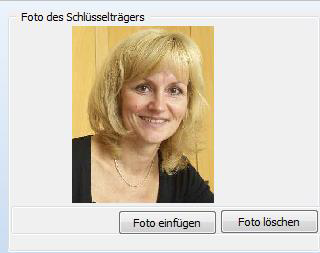
If the buttons are missing, go to System > Settings and enable Show Personnel Images.
Additional Information
When you open or create a key holder record, three tabs appear at the top of the form with additional information. The master data fields are self-explanatory. The Additional Data tab offers space for extra information:
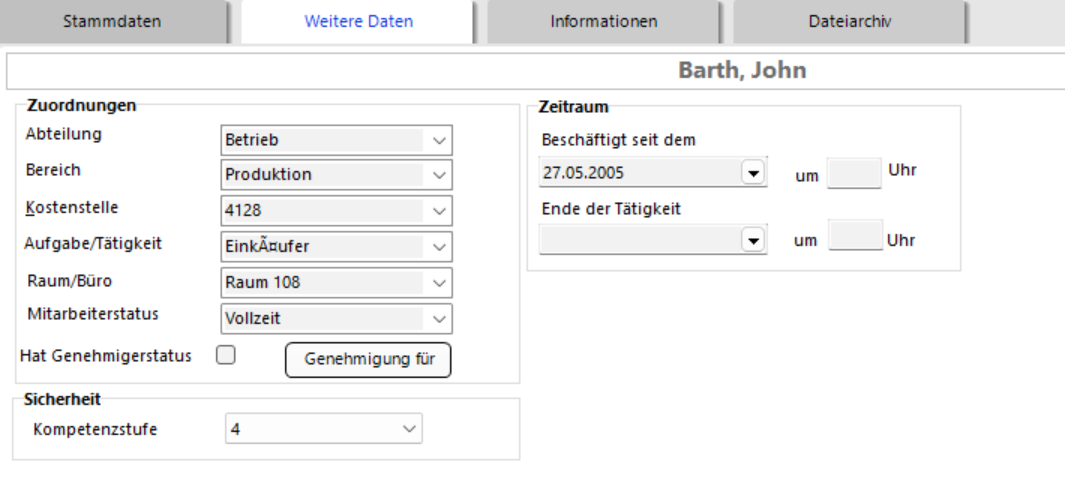
Fields with a small triangle on the right edge can be pre-filled with your own entries. How to do this is explained in the Selection Lists section.
Approver status: Determines whether this person is allowed to approve key issuances. The approval process is explained in a separate article, along with Competence and VIP Level.
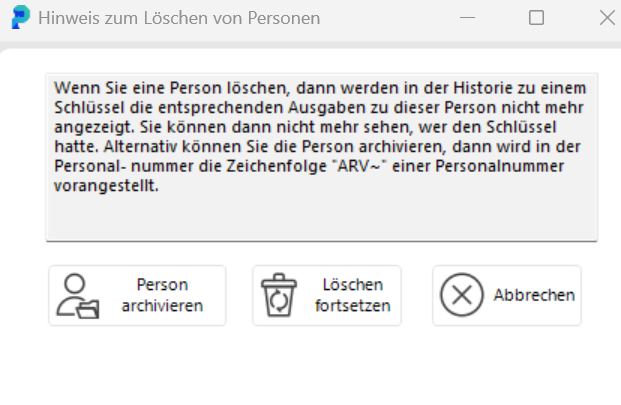
To delete a person, click DELETE PERSON in the PERSONNEL window. You will be asked to confirm the deletion.