In portier®VISION you can perform all actions with the mouse. The right mouse button is particularly useful throughout. Many actions are also accessible via function keys or keyboard shortcuts. A full list is available at: https://hub.portier.de/kb/tastenkombinationen
The biggest change in portier®VISION 5 compared to earlier versions: records are immediately available for editing by default. There is no longer a need to click Edit to unlock a record.
Required fields in input windows are always shown in bold.
Save changed data by clicking Save. Close the window by clicking Back.
Data is also saved if you click Back directly. In that case, confirm the prompt with Yes.

The menu bar is one of several ways to activate commands. Click a menu with the mouse or use ALT + underlined letter (e.g. ALT+A to open the View menu).
| Home — takes you to your personal QuickTiles Dashboard
| Switch Buildings, change your password, and exit portier®VISION
| Edit objects, switch to Depot and Dealer Management, place reorders and extension orders, search and replace, and more
| Key movement commands
| Data import commands
| CAD building plans, deposit management, locking plan printing, search and replace, and the daily task menu
| Settings, user management, role assignment, personnel data import, installation import, CSV cylinder import and export
| Help functions
| Shows the active Installation you are managing, with the option to switch to another Installation
| Notifications including approval requests and reminders
| Quick access to system settings
| Quick access to help
| Your initials — quick access to your user settings
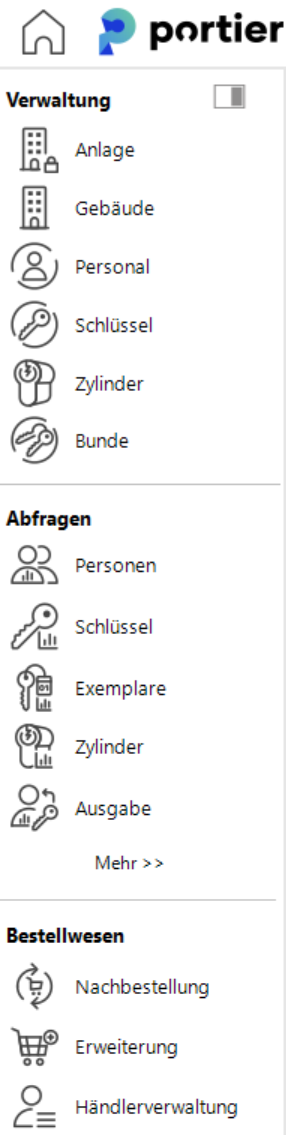
The Navigator groups related program functions into their respective modules. It is another way to reach commands and actions, alongside the menu bar.
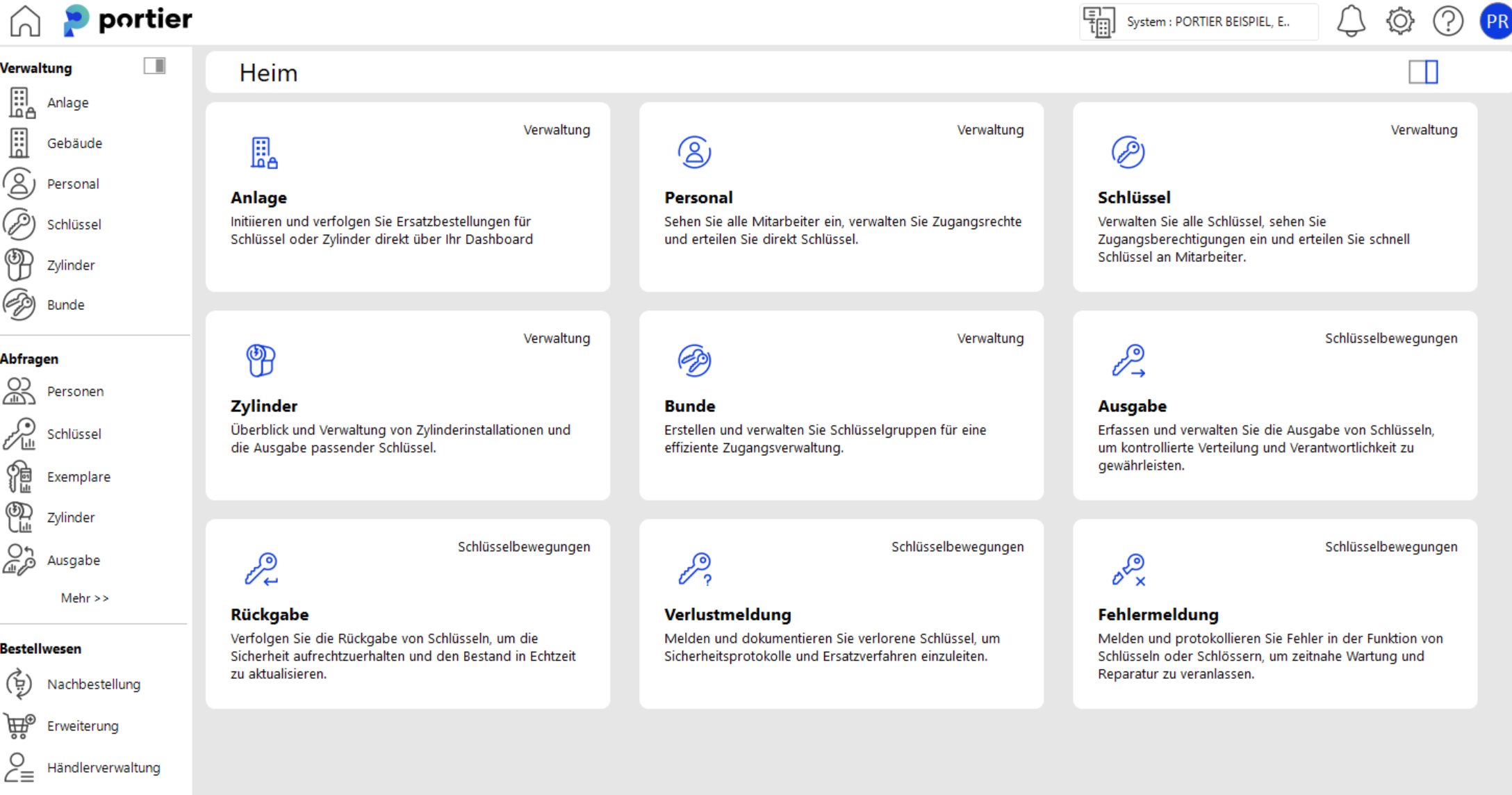
The Quick Tiles Dashboard in portier®VISION gives you a flexible, intuitive way to display frequently used functions directly on the home screen. Individually customisable tiles let you organise your dashboard to match how you work.
| Home takes you to your personal QuickTiles Dashboard
| The toggle on the right lets you customise the tiles to suit your needs.
Customisable tiles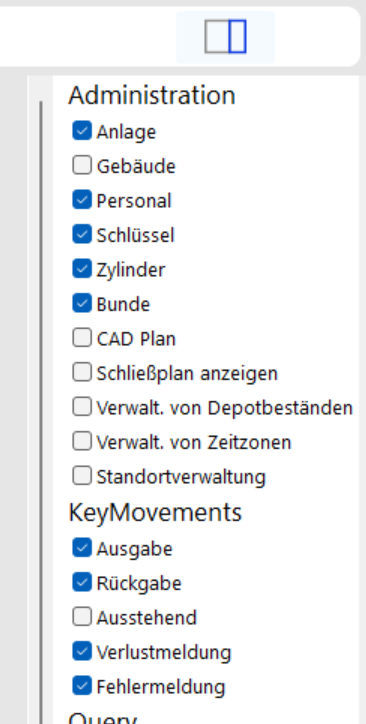 : Add the functions you use most as tiles. Get quick access to key issuance, locking plan creation, reports, and more.
Quick access: Each tile links to a specific module or function. One click opens it immediately, no menu navigation needed.