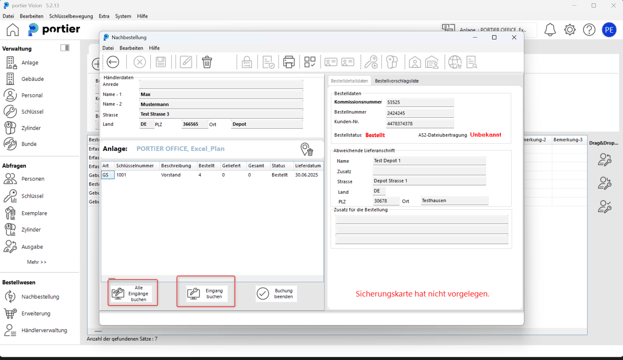
Tip: Key copies must be assigned to a depot – unassigned copies are visible and reorderable by all users in the system.
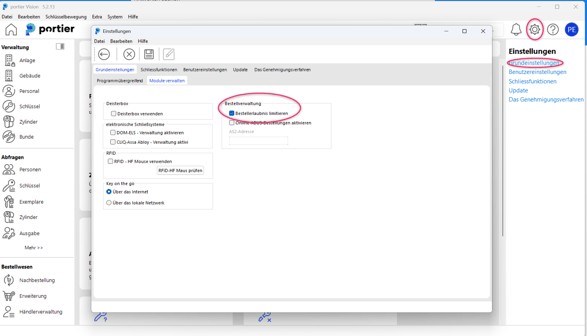
Settings to restrict reorders.
Select the settings in the upper right. In the tab „Basic Settings & Manage Modules“ you can specifically restrict ordering permissions.
To use this new ordering function, your keys must be assigned to the respective depots.
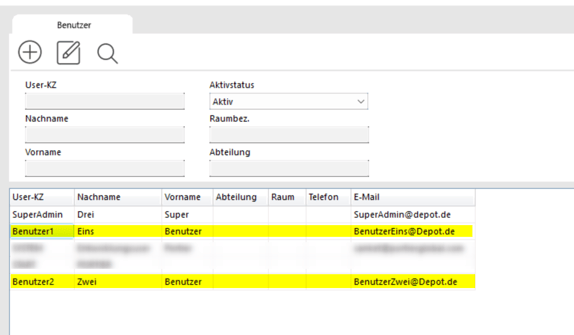
In the following example, there are User 1 and User 2.
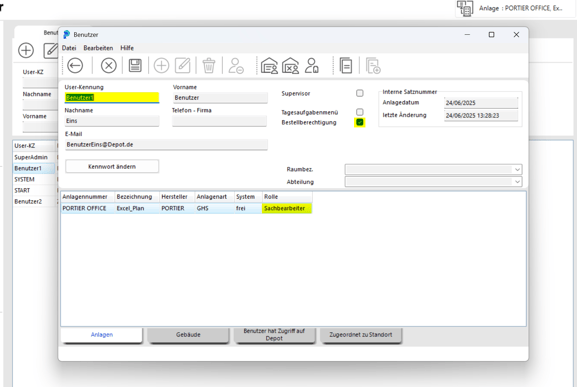
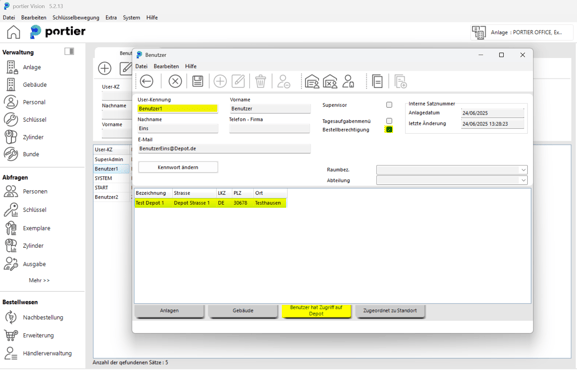
Via “System” in the top bar and “User Management”, the administrator can grant users permission to reorder.
Both users have at least the “Clerk” permission level for the system and depot rights for their respective depots. Additionally, ordering permission is activated for both.
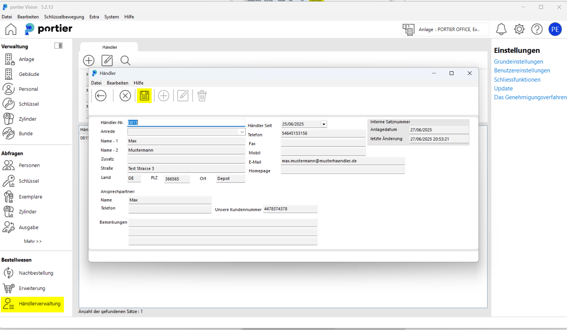
In the Dealer Management, you can store your dealers’ address data to save time on future orders.
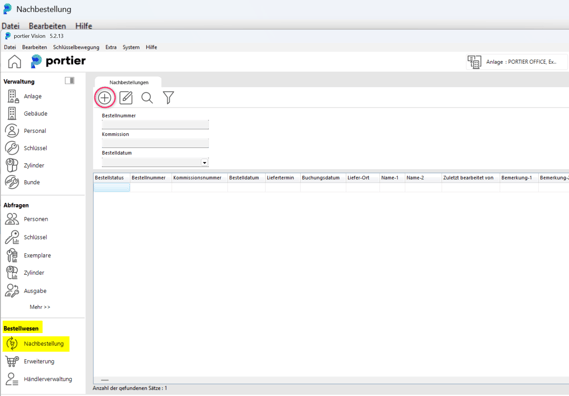
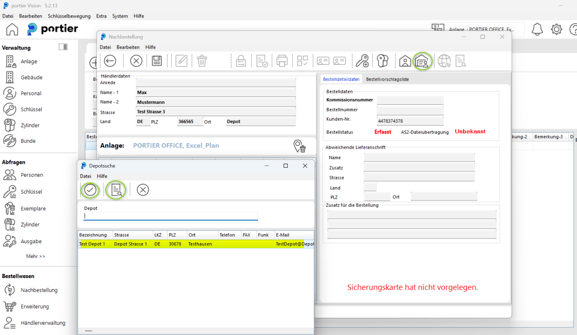
A new window opens. You can click the dealer button (red circle) to select the desired dealer address (magnifying glass) and confirm with the (checkmark symbol) confirm.
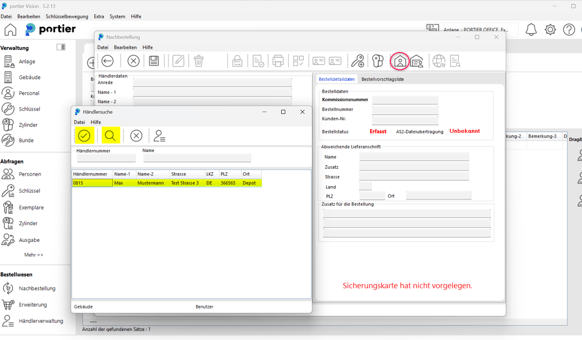
The address is automatically transferred to the reorder form.
Via the depot button (green circle), you can select a different delivery address:
Use the middle button to open the depot search and display available depots
Confirm your selection with the checkmark symbol
The address is then automatically transferred to the alternative delivery address field.
Make sure to enter an order number / commission number.
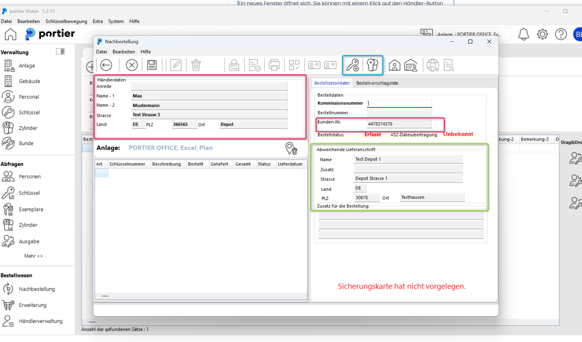
You have now transferred:
the dealer address (in red)
the alternative delivery address (in green)
You can now begin ordering your keys and cylinders (symbols in blue).
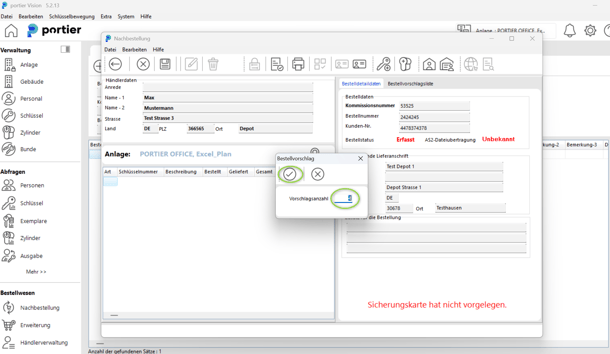
Click on “Add Key/Cylinder” (blue) to open a new window.
Via the search icon (magnifying glass), all keys and cylinders available in your depot (for which you have the appropriate permissions) will be displayed.
You can add the desired keys or cylinders to the order.
After confirming your selection with the checkmark symbol, another window opens where you can enter the desired quantity.
The selected keys/cylinders will then appear in the order form.
Once your selection is complete, you can:
finalize the order (blue circle)
print the order (green circle)
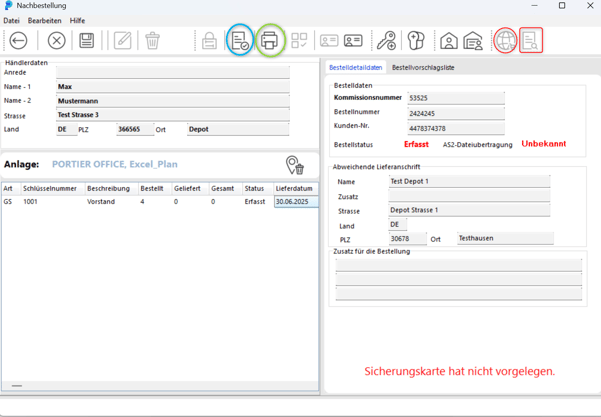
For customers with AS2 ordering authorization, the order can be sent via the globe icon (red).
The status of the order can then be checked using the search icon next to it (red box).
Once orders have been recorded and set to “Ordered”, you can confirm delivery upon goods receipt by clicking the “Receive” icon (blue circle).
This marks the order as received in the system, and the new keys or cylinders become available for further management in the depot.
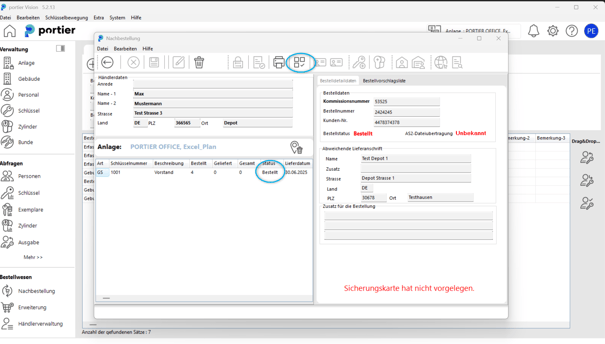
After receiving the key copies, they are automatically assigned to the previously selected depot.
This ensures full visibility at all times of which new items are managed in which depot, allowing you to control distribution accordingly.