In portier®VISION, you have the option at various points to significantly simplify data entry using so-calledselection lists.
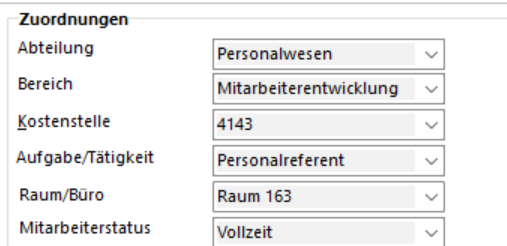 Selection lists are recognized by a small downward-pointing triangle to the right of the field.
Select the desired entry by clicking on the triangle.
With selection lists, you can also ensure that department names, cost centers, area names, etc. are always spelled consistently byselection lists predefined entries.
This makes later searches more reliable and effective. To create entries in aselection list, click on the desired field (in the example: the "Salutation" field) and then press the keyboard shortcutAlt + F12.
You will receive a list overview of the existing entries.
To add new entries, click the buttonAdd. |
To edit entries, select the desired entry by clicking and then click the buttonEdit. |
Save each change via the buttonSave. |
Via the buttonBack, you return to theselection list. |
From now on, all created entries are available to you in thisselection list.
 Enter the first letter in the field (in the example: "F") and portier®VISION searches for the first matching entry.
If there are multiple matching entries, you can use the cursor key (arrow down) to select the desired entry